Set the language
Cliphi figures out the spoken language for you. Here is how to set it yourself if you would rather choose.
Cliphi reads the words in your video to make the captions, and it figures out the spoken language on its own. Most of the time you do not have to think about it. When you want to choose the language yourself, here is where.
Where to set it
Right after you paste a link, on the step where you pick how much of the video to use, there is a language menu. Open it to choose.
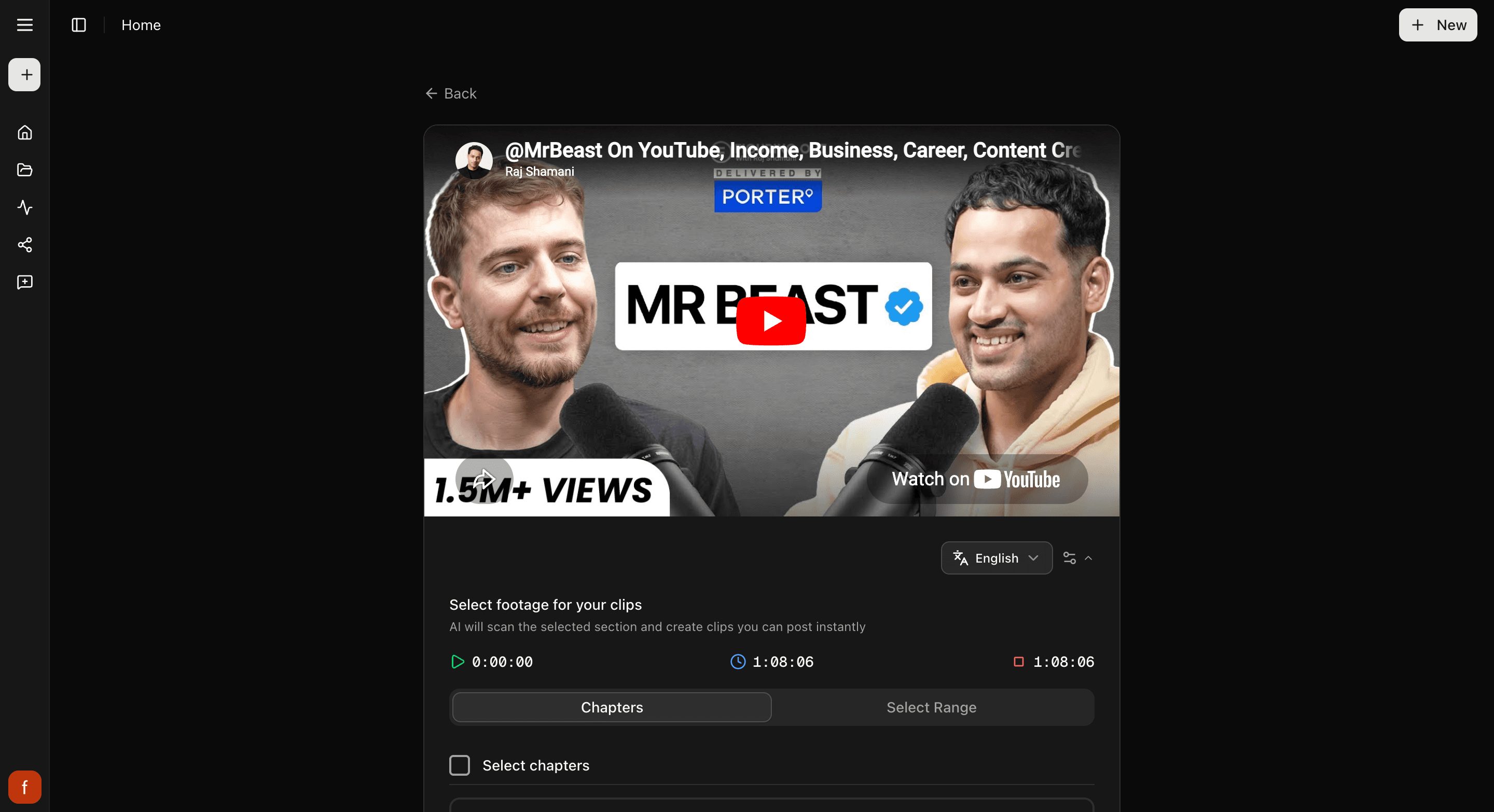
Pick a language
The menu is set to Auto-detect to start, which lets Cliphi work out the language for you. Once it reads the video it usually fills in the language it heard. To set it yourself, open the menu and pick one from the list.
- If Cliphi already spotted the spoken language, it is marked detected.
- A video that was dubbed into other languages shows a small speaker icon next to the ones with real spoken audio.
If you are not sure, leave it on Auto-detect. Cliphi is good at getting it right.
What's next
- Make your clips: Make your first clips.
- Which videos work: What you can clip.
Last updated on