Reframe cut by cut
Set the framing shot by shot, and add little transitions between cuts, so a busy clip stays locked on the right person.
Most clips are made of a few cuts, where the video jumps from one shot to the next. Cliphi frames each cut on the speaker for you. But when a clip switches between people or the wrong thing ends up in the middle of the frame, you can step in and set the framing for each cut yourself. That is what the Cuts tab is for. It is the most hands-on control in the editor, and it is where you go when you want a clip just so.
This is different from fixing the framing, which sets one frame for the whole clip in a single tap. Reach for Cuts when different parts of the clip need different framing.
Open the Cuts tab
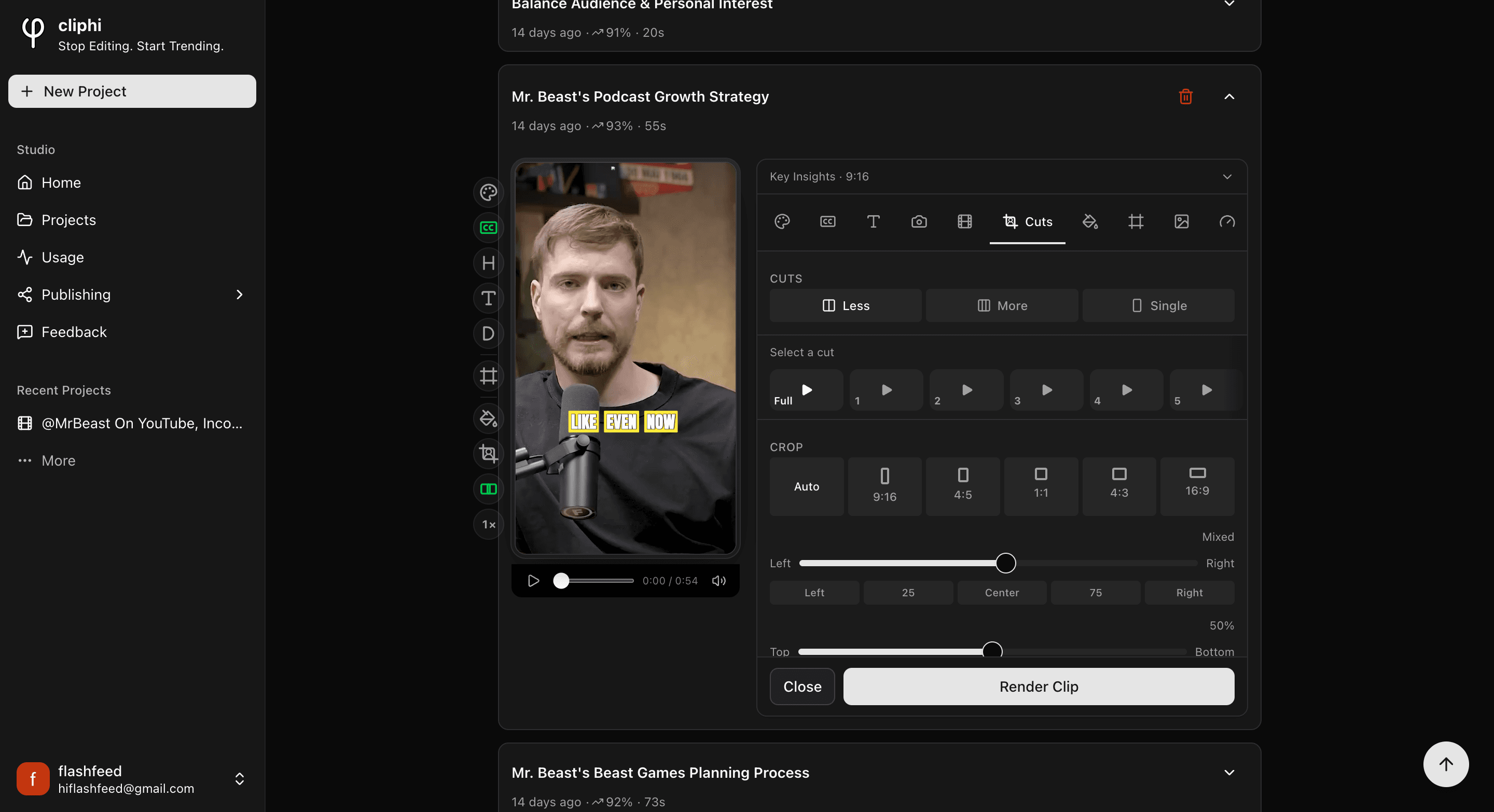
Open a clip, tap Edit under the preview, and pick Cuts from the row of tabs (the crop icon).
If you see "No cuts available," make the clip once with Get Clip first, then come back and the cuts will be ready to edit.
Set how often it cuts
At the top, Cuts decides how choppy the clip feels:
- Less cuts between shots now and then.
- More cuts more often for a snappier feel.
- Single turns cutting off, so the clip stays on one shot the whole way.
Frame the whole clip at once
With Full selected in the cut list, your changes apply to every cut together:
- Crop sets the shape. Leave it on Auto and each cut keeps the framing Cliphi chose for it. Pick a shape (like 9:16 or 1:1) to use the same one across the clip.
- The Left to Right and Top to Bottom sliders nudge the framing. Drag them, or tap Center, Left, and so on. If your cuts are framed differently, this reads "Mixed" until you set one for all.
- Transitions adds a little animation at each cut. Random mixes them up, or choose None to keep it clean.
Frame one cut on its own
This is the real power of the tab. Tap a cut in the list (1, 2, 3, and so on) to work on just that one. The preview jumps to it so you can see what you are doing.
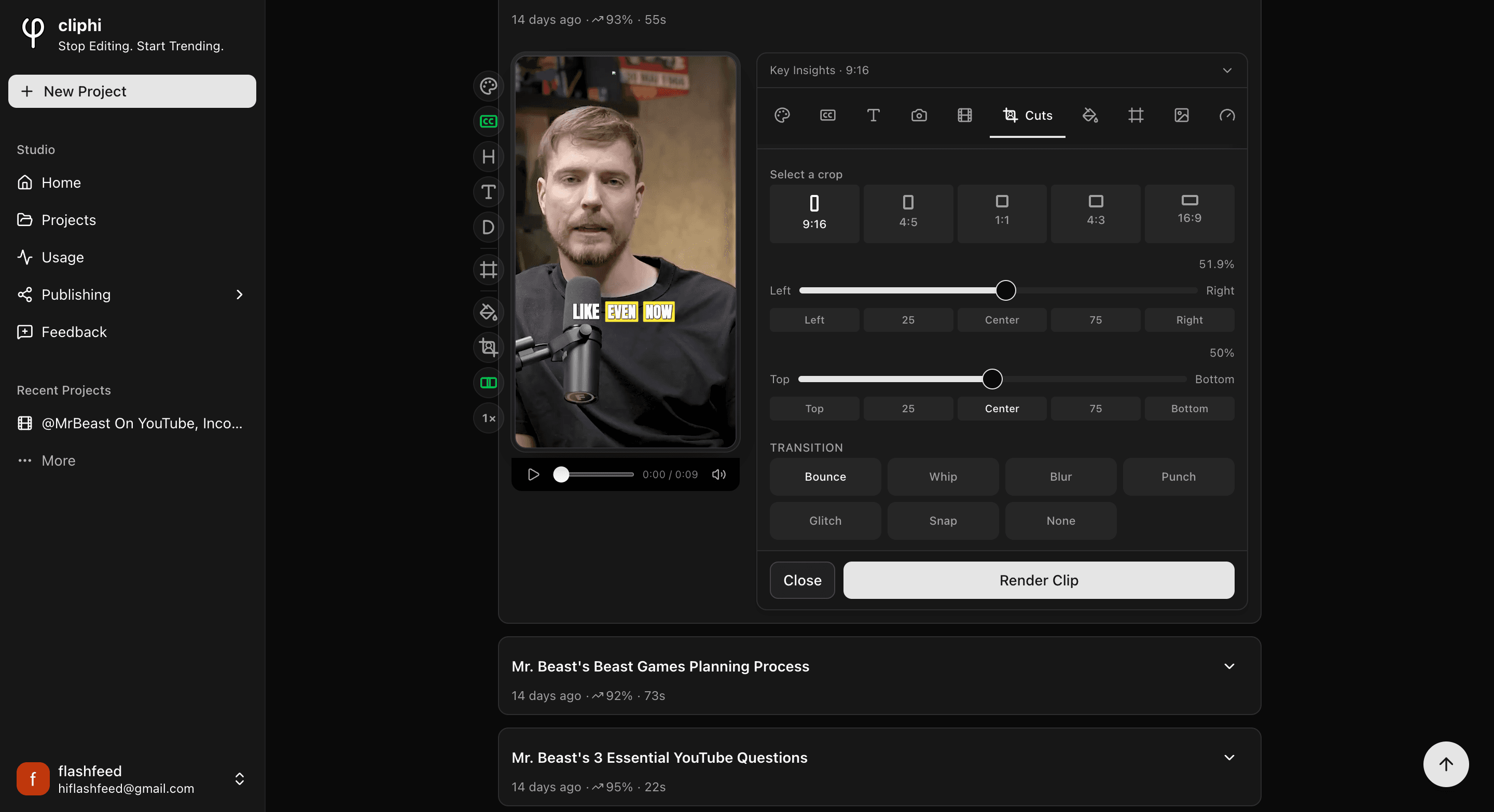
For the cut you picked, set:
- Select a crop for the shape of this cut.
- Left to Right and Top to Bottom to place the subject exactly where you want.
- Transition for the animation going into this cut: Bounce, Whip, Blur, Punch, Glitch, Snap, or None.
Do the same for any other cut that needs it. Everything you set here is just for that one cut, so you can keep the good ones as they are and only fix the cut that landed wrong.
Quick check before you Get Clip
- Play the clip through and watch each cut land.
- The right person is in frame in every cut.
- Nobody is cut off at the edge or sitting too low.
- The transitions feel smooth, not distracting.
Related
- Frame the whole clip in one tap: Fix a clip's framing.
- Keep your text clear of the app buttons: Keep text inside the safe zones.
- What every control does: The quick edit rail.
Last updated on