Change your caption style
Every Cliphi clip comes with captions already on it. Here is how to switch the look, fine-tune the font and color, and move them where you want.
Most short videos get watched with the sound off, so captions are often the difference between someone watching and someone scrolling past. Every Cliphi clip comes with captions on it already. You only need this guide when you want to change how they look.
Steps
1. Open the clip
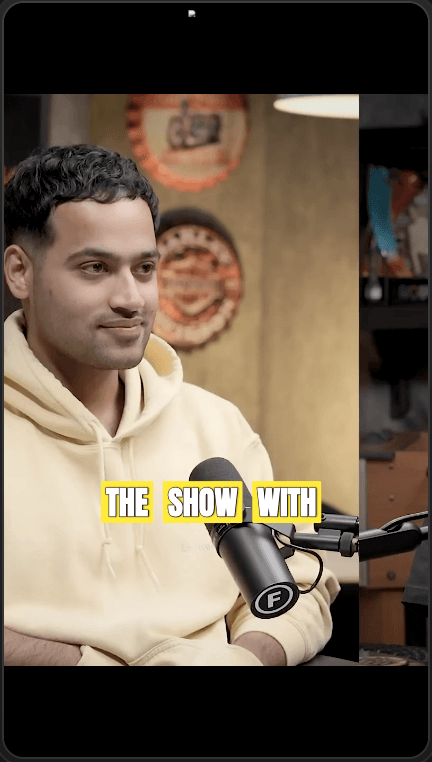
From your clips, open the one you want to change. The captions are the moving words near the bottom of the clip, and they are already on it.
2. Pick a caption look
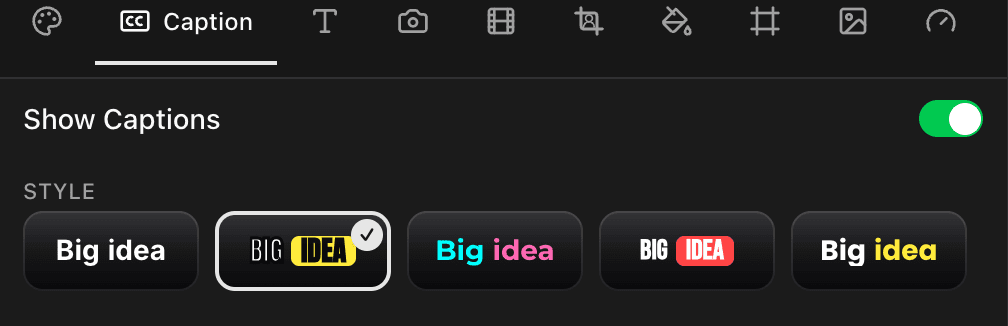
Open the clip's edit controls and tap Caption. At the top is a row of ready-made looks. Tap through them and watch the preview change. Try a few and keep the one that fits your video.
3. Make it yours (optional)
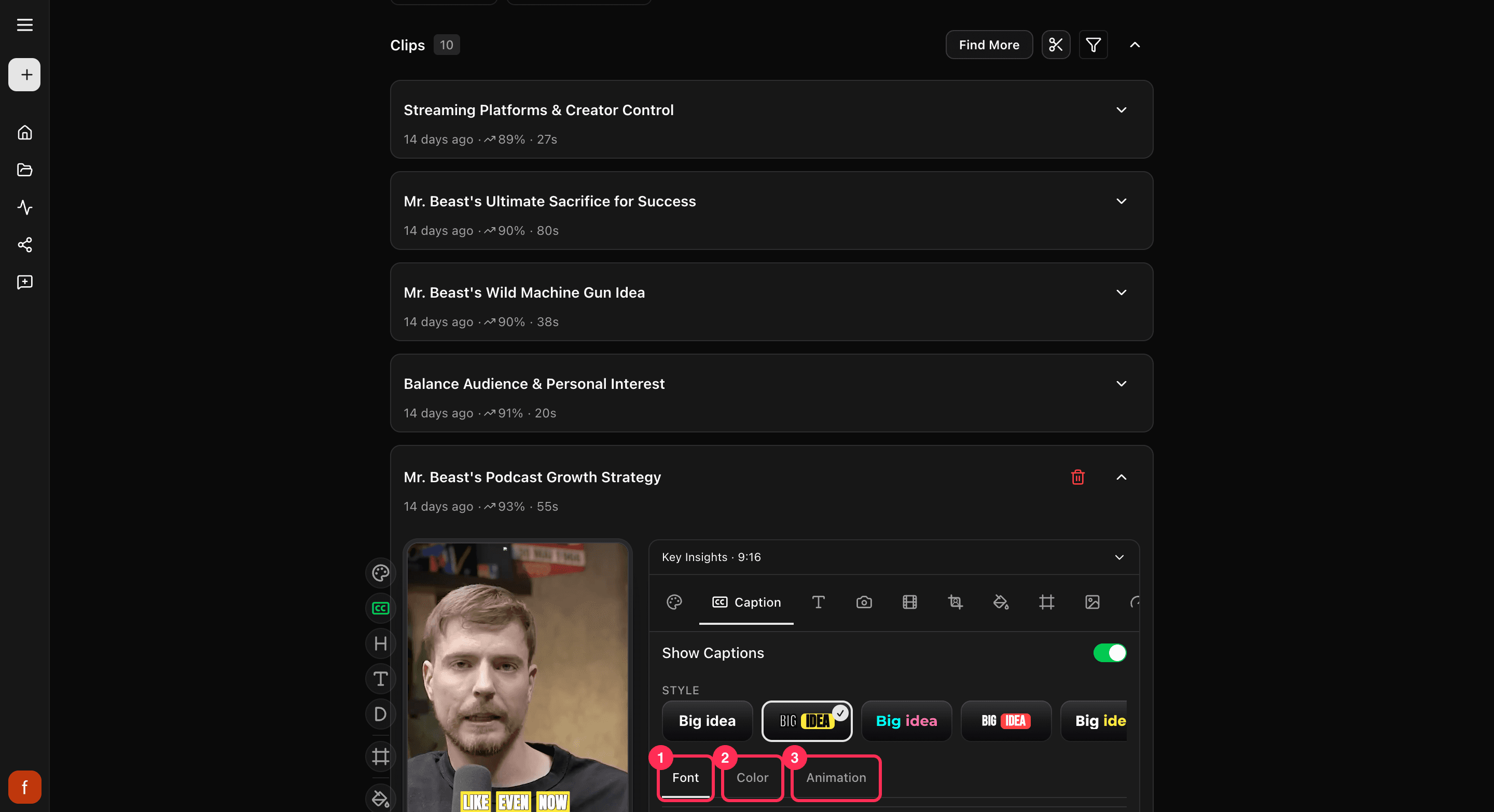
Under the looks are three tabs so you can fine-tune:
- Font: the typeface, and how big the words are.
- Color: the word color, plus a highlight color for the word being spoken.
- Animation: how the words pop in, and how many show at a time.
You do not have to touch these. The looks already handle it. Come here when you want a specific color or a bigger size.
4. Move the captions
Drag the captions on the preview to reposition them. They snap left, center, or right, and slide up or down. Keep them near the middle so they stay clear of the buttons each app stacks along the edges.
5. Turn captions on or off
In the Caption tab, the Show Captions switch turns the words on or off for this clip. Off is handy for a clip that is all music or all action.

Keep captions clear of app buttons
Each app puts like, comment, and share buttons over the sides and bottom of your clip. Turn on the Safe zones guide to see where those land, then nudge your captions clear of them. More on that in Keep text inside the safe zones.
Quick check before you Get Clip
- Play the clip and read the captions through.
- The look and size are easy to read on a phone.
- The captions sit clear of each app's buttons.
- If this clip should be silent, captions are turned off.
Related
- New to Cliphi? Make your first clips.
- The full row of clip controls: The quick edit rail.
- Captions on a video you already have: Add captions to a video.
- Posting to Shorts? Add subtitles to YouTube Shorts.
- Want the moving-word style? Animated captions.
Last updated on
The quick edit rail
Down the side of each clip is a row of quick controls. Here is what each one changes, when to reach for it, and how it works on a phone.
Show, hide, and edit the Hook, Title, and Description
Besides captions, a clip can show a hook, a title, and a description. Here is how to turn each one on or off and change the words.