Trim a clip
Cut a few seconds off the start or end of a clip so it opens and ends right where you want.
Cliphi cuts each clip to a good length for you, but sometimes you want to shave a little off the start so it opens on the strong line, or trim the end so it stops before someone trails off. That is what trimming is for.
Steps
1. Open the Trim controls
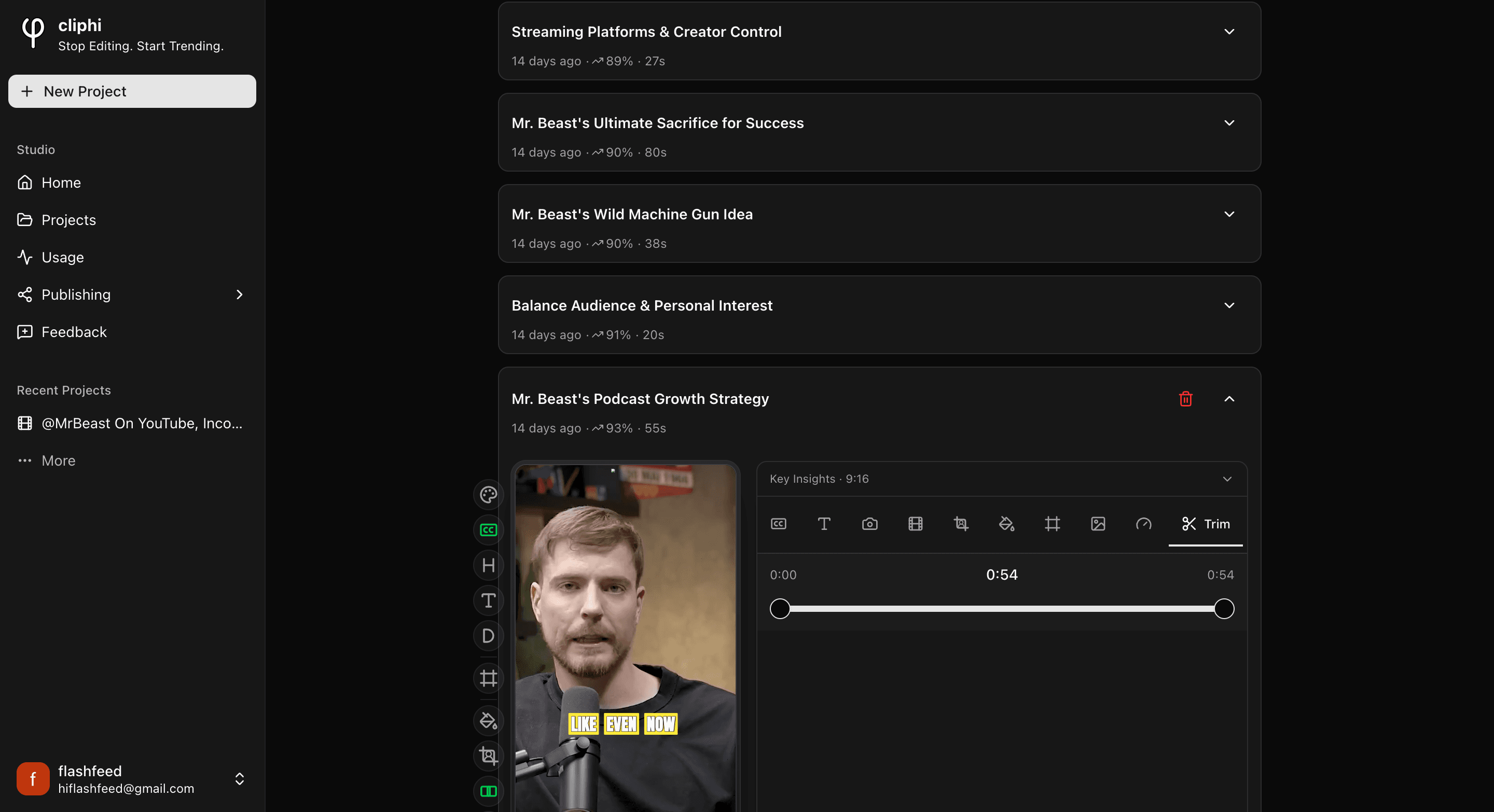
Open the clip, tap Edit under the preview, and pick Trim (the scissors).
2. Set the start and end
Drag the two handles on the bar. The left one sets where the clip starts, the right one sets where it ends. As you drag, the preview jumps to that exact spot so you can land on the right moment.
The three times above the bar tell you where you are: the start on the left, the new length in the middle, and the end on the right. Watch the middle number to keep the clip the length you want.
3. Check it plays right
Play the clip back. It should open on your strong line and stop before anything trails off. Nudge the handles until it feels right.
Good to know
- It is free. Trimming just changes which part of the clip plays, so drag the handles as much as you like. You only spend a credit when you make the final clip with Get Clip.
- Nothing is lost. Trimming does not throw anything away. Drag the handles back out any time to bring the trimmed bit back.
- Reactions come off. If the clip has a reaction on it, trimming removes it, since your recording was timed to the old length. You can record a fresh take after trimming.
Quick check before you Get Clip
- The clip opens right on the strong moment.
- It ends before anyone trails off or pauses.
- The length in the middle is where you want it.
What's next
- What every side control does: The quick edit rail.
- Ready to save it? Download a clip.
Last updated on