Clip a Twitch stream
Turn a long Twitch recording into short, captioned clips for TikTok, Reels, and Shorts. Paste the link and Cliphi finds the best moments for you.
A Twitch recording can run for hours, and the moment worth posting is usually buried somewhere in the middle. Cliphi watches the whole thing, finds the best moments, and turns each one into a short clip with captions on it. Here is how to do it.
What you get back
You get a handful of short, tall clips, not the whole stream chopped up. Cliphi picks the moments that tend to do well, like the clutch play or the line chat went off for, and turns each one into its own clip with captions on it. Each clip is ready to post as-is, and you can tweak any of them before you do.
Before you start
You need a link to your Twitch video. There are three kinds you can paste, and any of them works:
- A past broadcast. This is your whole stream after it ends. On Twitch, go to your channel, open the Videos tab, open the broadcast you want, and copy the link from your browser's address bar.
- A clip. A short bit someone already snipped from a stream. Open the clip on Twitch and copy its link.
- A stream that's still going. Paste your channel link while you are live and clips can come back before you even finish.
You do not need to download anything first, and you do not need to clip inside Twitch before you start.
Good to know. Your plain channel link only works while you are actually live. If your stream has ended, grab the past broadcast from your Videos tab instead. And Twitch only keeps past broadcasts for a while before removing them, so pull the clips you want while the broadcast is still there.
Steps
1. Paste the Twitch link
On the Cliphi home page, paste your Twitch link into the box and select Get clips. If you are not signed in yet, Cliphi asks you to sign in first, then picks up where you left off.

2. Choose how much of the stream to use
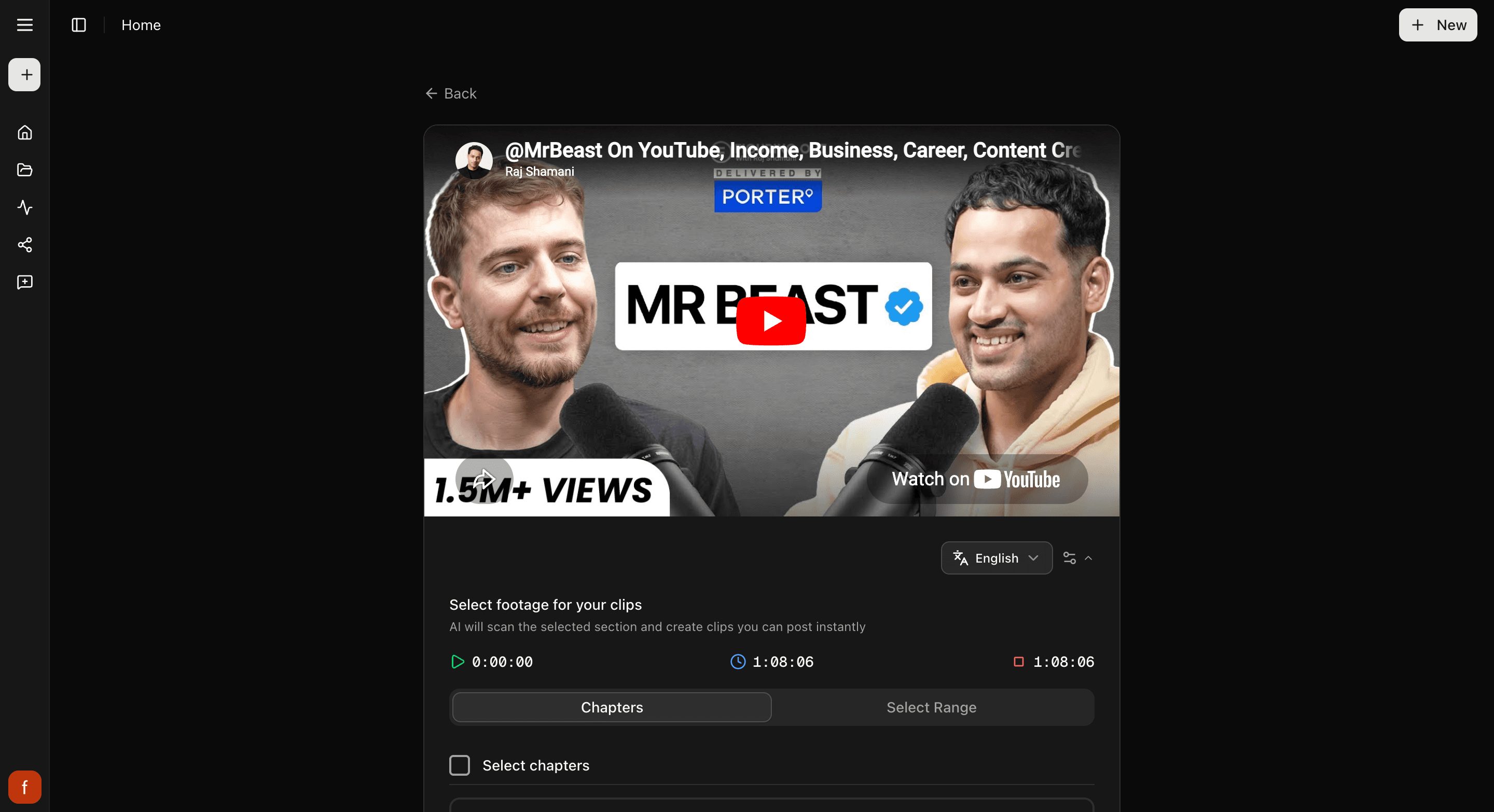
A Twitch broadcast can run for hours. Cliphi shows you the video so you can point it at the right part. Use the whole thing, or drag the handles to pick just the stretch you care about, like the last hour where the good runs happened. Not sure? Leave it on the whole video. Then select Continue.
3. Pick a caption look
Cliphi may ask you to pick a caption style for your clips. Choose one you like and select Continue. You can change it on any clip later. Want to see the options first? See Change your caption style.
4. Let Cliphi find the moments
Cliphi watches the video and finds the best moments for you. A long broadcast takes longer than a short one, so a full stream can take a while. You can leave the page and come back. Clips show up as they are ready, so you can start looking before they are all done.
5. Look through your clips
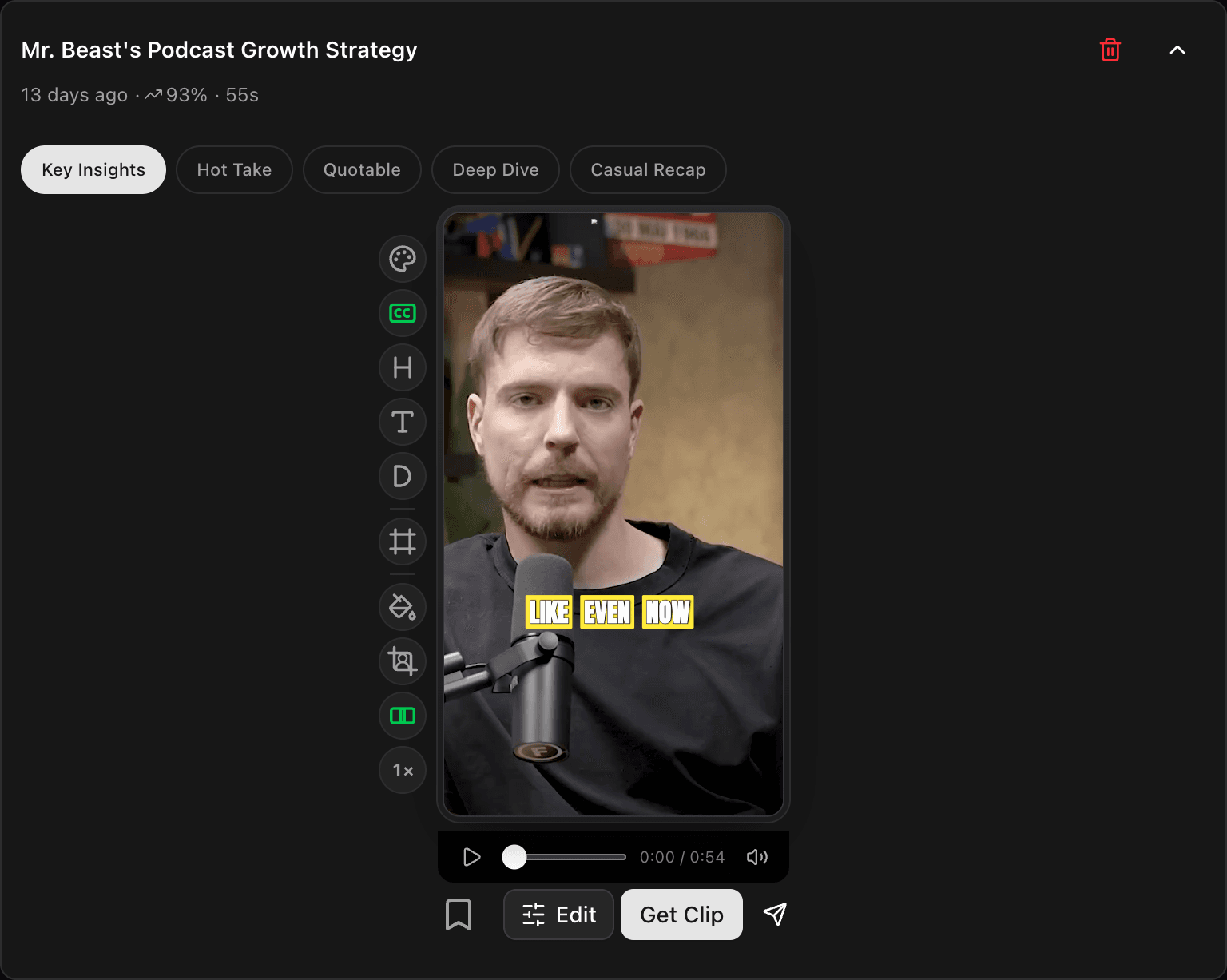
Each clip comes back ready to post. It is cut to a tall shape with the speaker kept in frame and captions already on it. Open any clip to watch it.
6. Tweak anything you want (optional)
Open a clip and use the row of controls down the side to change the caption look, adjust the framing so the right part fills the tall frame, trim the start and end, or make it feel livelier. Every change shows in the preview as you make it. For what each control does, see The quick edit rail. If you are happy with the clips as they are, skip straight to posting.
7. Post or schedule
Download the clip, or connect your socials and post straight from Cliphi.
Quick check before you post
Before you download or post, give the clip a quick once-over:
- Watch the whole clip through.
- The speaker stays in frame the whole way.
- The captions read clearly and sit clear of the edges.
- Turn off any text you don't need, like the description, so the play stays the star.
Related
- New to Cliphi? Make your first clips.
- What each control on a clip does: The quick edit rail.
- Want the captions to look different? Change your caption style.
- Where your clips land: A tour of your project page.
- Posting to TikTok? Turn a Twitch video into a TikTok.
- Posting to Shorts? Turn a Twitch VOD into YouTube Shorts.
- Posting to Reels? Turn a Twitch moment into a Reel.
Last updated on