The quick edit rail
Down the side of each clip is a row of quick controls. Here is what each one changes, when to reach for it, and how it works on a phone.
Your clips come ready to post, so you do not have to edit them at all. But when you want to tweak one, everything is in the row of controls down the side of the clip. This is the quick edit rail. Tap a control and the preview updates right away.
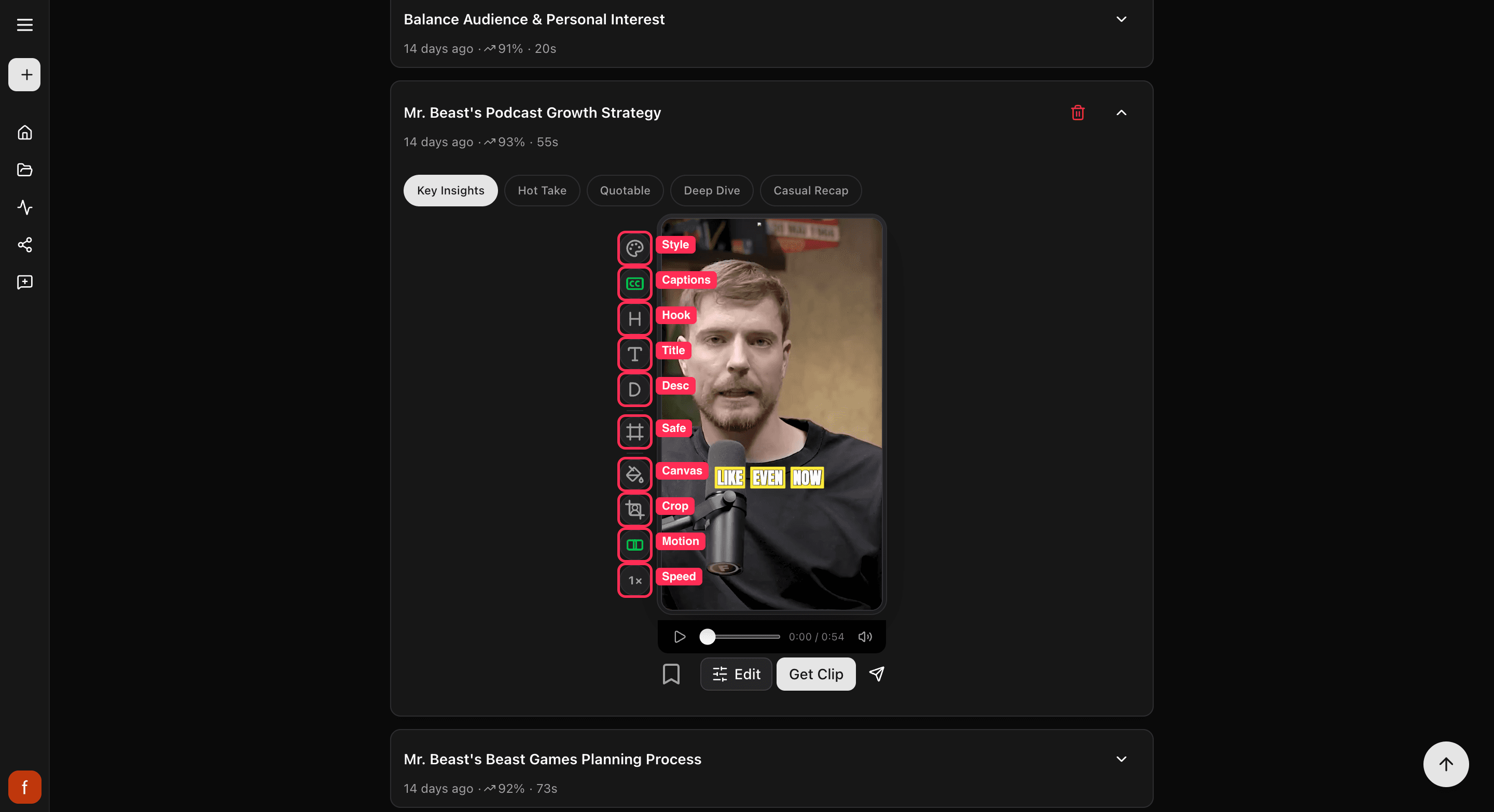
A control glows green when it is on. And you only see a control when it can actually do something, so if a clip has no title, the Title control is not there, and the framing control hides on clips that are already wide.
What each control does
The controls fall into three simple jobs: the words on screen, the way it looks, and how much it moves.
The words on screen
- Pick a style: the quickest way to change everything at once. Tap it and choose a look from the little grid. It restyles the captions and text together, so the whole clip matches. Start here if you just want a different vibe without fiddling with each piece.
- Captions: turn the words on the screen on or off, and pick a look. Reach for this if the captions feel too big, too plain, or you want them gone. See Change your caption style.
- Hook: the big line of text at the top that grabs people in the first second. Turn it off if it is covering something, or on if the clip needs a stronger opening.
- Title: show or hide the clip's title. Turn it off when the hook already says enough.
- Description: show or hide the smaller line of text. If the screen feels crowded, this is usually the first thing to turn off.
- Safe zones: turns on a guide that shows where each app puts its own buttons, like the like and share icons. Use it to check none of your text is hiding behind them before you post.
The way it looks
- Background: fills the space around the video when it does not cover the whole tall frame. Tap to switch between a soft blurred version of the video and plain black. Use black for a clean look, blur when black feels too stark.
- Crop: decides which part of the video fills the tall frame. Leave it on Auto and it follows the person as they move. Switch to a fixed frame if Auto ever lands on the wrong spot.
How much it moves
- Motion: how lively the clip feels. Tap through from holding on one steady shot to cutting between framings as people talk. More movement keeps a fast clip punchy, less movement suits a calm talking clip.
- Speed: play the clip a little faster. Handy when someone talks slowly or a moment drags. Tap to step up, tap again to keep going.
Every tap shows up in the preview straight away, so try a few and keep whatever looks best. Nothing is saved to the final clip until you tap Get Clip.
On a phone
On a small screen the rail cannot fit every control at once, so it shows them in two sets. The text controls sit in one set, and the look, framing, and speed controls sit in the other. Tap the Swap button at the bottom of the rail (the up-and-down arrows) to flip between them. On a computer you see all of them at once, so there is no Swap button.
Quick check before you Get Clip
Once it looks the way you want, give it a quick once-over:
- Watch the whole clip in the preview.
- The subject stays in frame.
- Your text sits clear of the app's own buttons. Turn on Safe zones to check.
Go deeper on a control
- Change your caption style
- Show, hide, and edit the Hook, Title, and Description
- Change the background
- Fix a clip's framing
- Reframe cut by cut
- Change the clip speed
- Trim a clip
- Keep text inside the safe zones
What's next
Last updated on