Keep text inside the safe zones
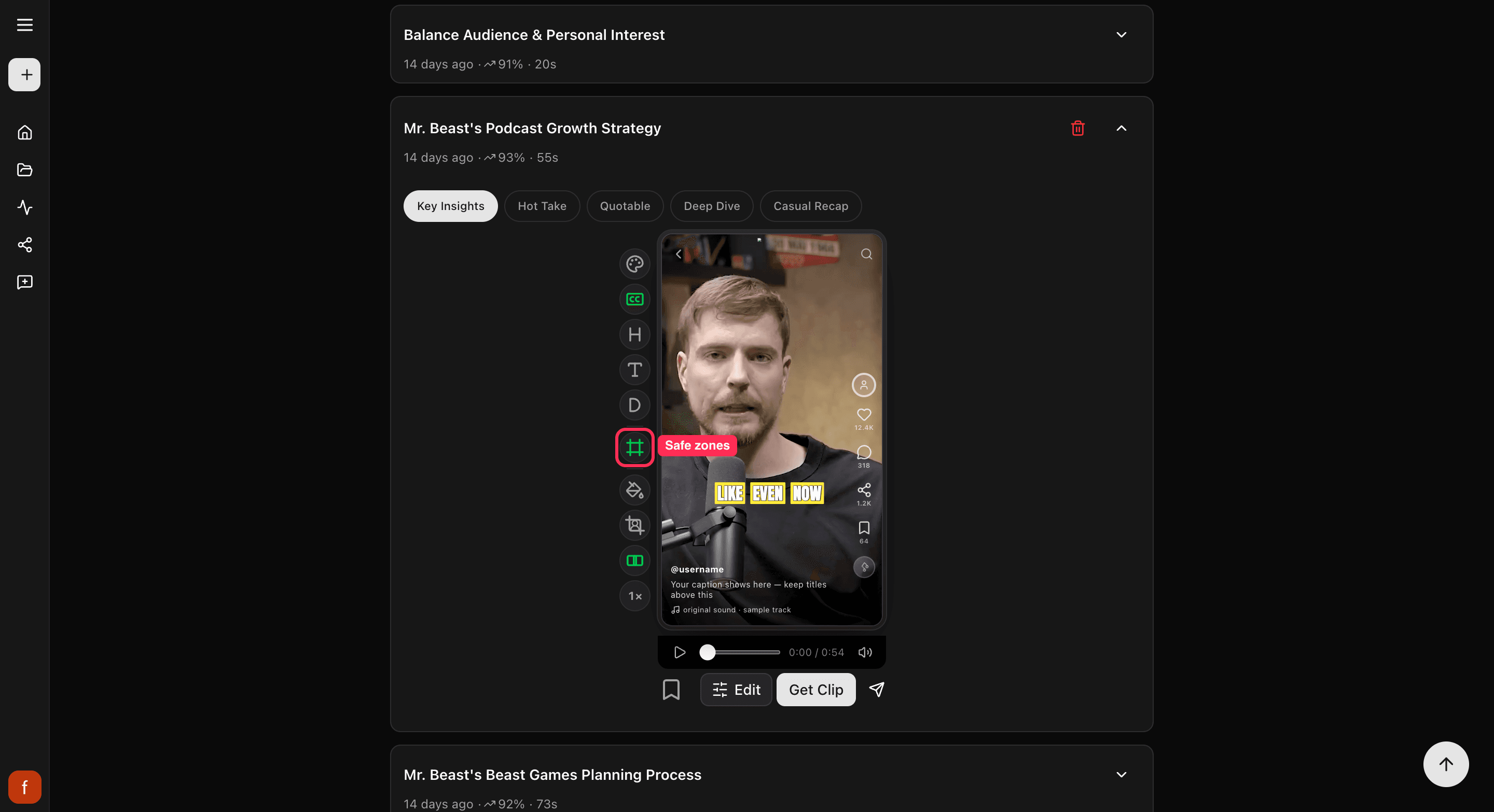
Each app stacks its own buttons over your clip. Safe zones show you where they land so your text stays clear.
When you post a clip, TikTok, Reels, and Shorts each stack their own buttons over it: the like, comment, and share icons down the side, and a caption bar along the bottom. If your captions or text sit in those spots, they get covered up. Safe zones show you where to keep clear.
Steps
1. Turn on Safe zones
Open the clip and tap Safe zones on the row of controls down the side.
2. See where the app buttons land
A guide appears over the preview showing where each app puts its buttons and its caption bar. Tap the control again to cycle through the views: a realistic app preview, then both together, then simple shaded blocks. One more tap turns it off.
3. Move your text into the clear
Nudge your captions, hook, and title into the open middle of the frame, away from those spots, so nothing important gets hidden once you post. To move the captions, see Change your caption style.
Good to know
Safe zones are only a guide to help you place things. They are never part of the finished clip, so no one who watches your clip will see them. The guide shows on tall clips.
What's next
- What every side control does: The quick edit rail.
- Move your captions: Change your caption style.
Last updated on