Show, hide, and edit the Hook, Title, and Description
Besides captions, a clip can show a hook, a title, and a description. Here is how to turn each one on or off and change the words.
Every clip has captions on it already. On top of that, you can add three bits of text: a Hook (the big line at the top that grabs people), a Title, and a Description (a smaller line). You choose which ones to show, and you write the words yourself.
Turn each one on or off
Open the clip and tap Text. You will see three little tabs: Hook, Title, and Description. Each has a Show switch.
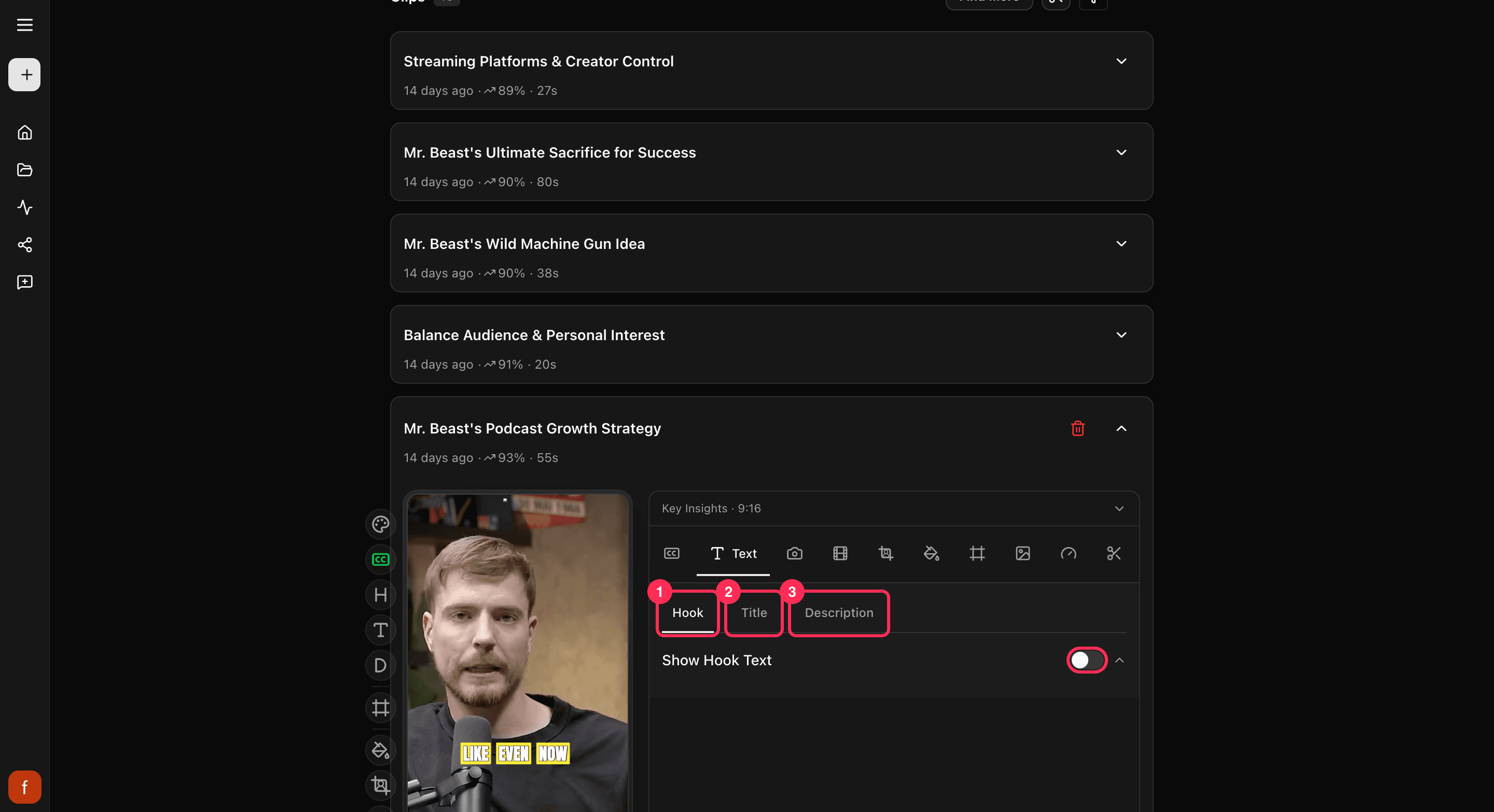
To start with, the Title is on and the Hook and Description are off. Flip a switch to show or hide that piece. You can also turn each one on or off from the row of controls down the side of the clip.
Change the words
Under each switch is a box where you type the text. Write a hook that makes people stop, keep the title short, and use the description only if the clip needs it. You can also tap the text right on the preview to change it there.
A note on captions
Captions are different. They are the moving words that match what is said, so you do not type those here. To change how the captions look, see Change your caption style.
Quick check before you Get Clip
- The hook grabs attention in the first second.
- The words say what the clip is about, with no typos.
- The text sits clear of the app's own buttons.
- Only the pieces you want are showing.
What's next
- What every side control does: The quick edit rail.
- Keep text clear of app buttons: Keep text inside the safe zones.
Last updated on
Change your caption style
Every Cliphi clip comes with captions already on it. Here is how to switch the look, fine-tune the font and color, and move them where you want.
Change the background
The background is what fills the space around your video when it does not cover the whole tall frame. Here is how to change it.