Change the background
The background is what fills the space around your video when it does not cover the whole tall frame. Here is how to change it.
When your video does not fill the whole tall frame, Cliphi fills the space around it with a background. By default that is a soft, blurred version of your video. You can change it to a plain color, a color Cliphi picks for you, or an image of your own.
Steps
1. Open the Background controls
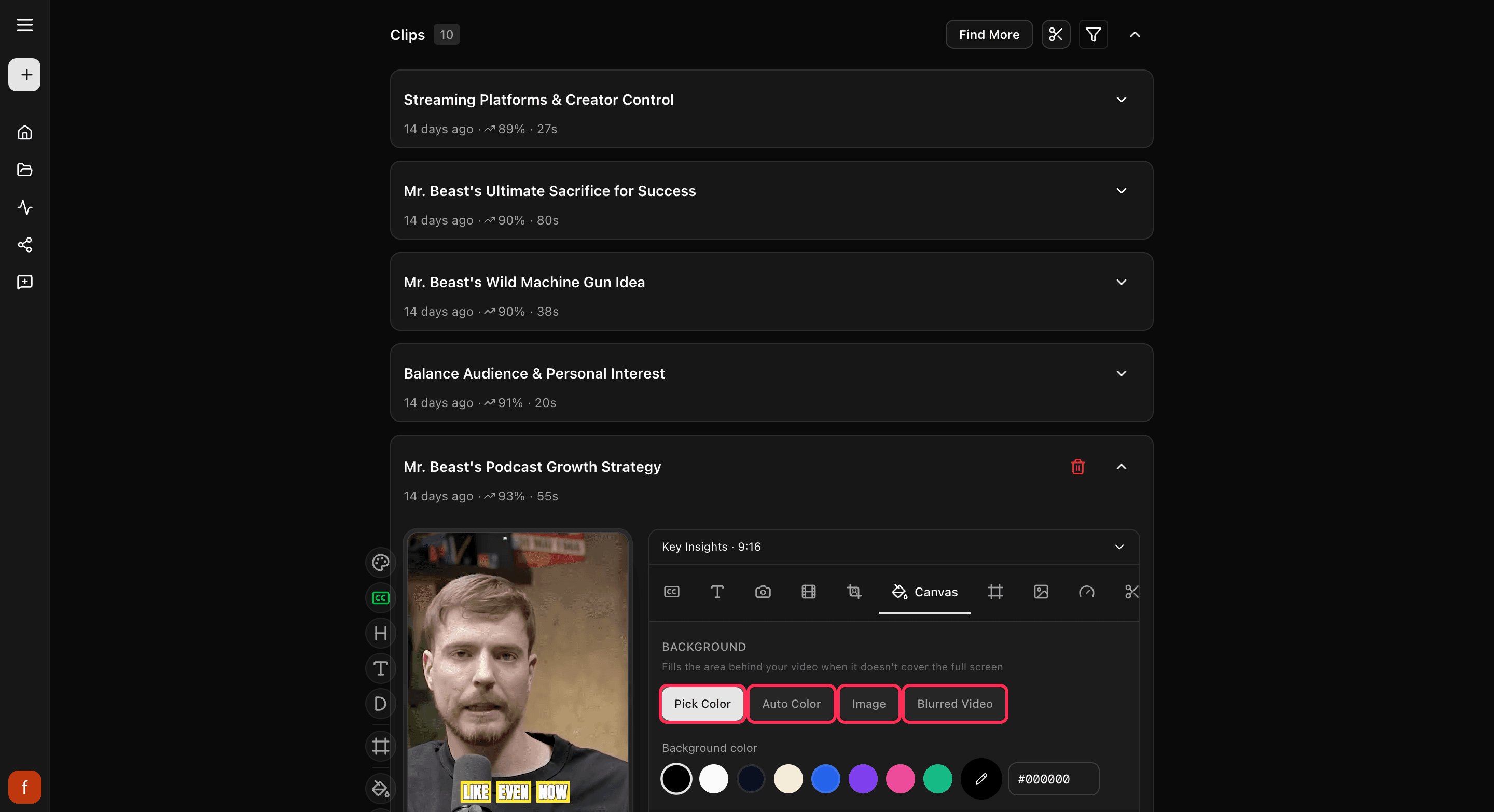
Open the clip and tap Canvas. You can also tap the Background button on the row of controls down the side for a quick switch between a blurred video and plain black.
2. Pick a background
Choose the one you want:
- Blurred Video: a soft, blurred version of your clip. This is the default and it suits most videos.
- Pick Color: choose a plain color from the swatches, or set your own.
- Auto Color: let Cliphi pick a color that matches your video.
- Image: upload your own background image (JPG, PNG, or WebP, up to 10 MB).
3. Fine-tune the blur (optional)
If you keep Blurred Video, you can adjust how strong the blur is, zoom the background in a little, and darken it so your video stands out. The preview updates as you go.
Quick check before you Get Clip
- Your video stands out clearly from the background.
- The background is not busier than the video itself.
- If you used your own image, it fills the space without stretching.
What's next
- What every side control does: The quick edit rail.
- New to Cliphi? Make your first clips.
Last updated on