Record a Reaction
Put your face or your voice on any clip. Tap the record button, talk while the clip plays, and your reaction becomes part of the clip.
A reaction puts you on the clip. Record with your camera and you appear in a small bubble over the video; record voice only and your commentary plays over it. Either way, the clip's own sound drops to the background while you talk, and what you say becomes the clip's captions.
Before you start
Your browser will ask for permission to use your microphone (and camera, if you record with it). Allow it once and you are set. On a phone, headphones make the recording sound cleaner.
Steps
1. Find the record button
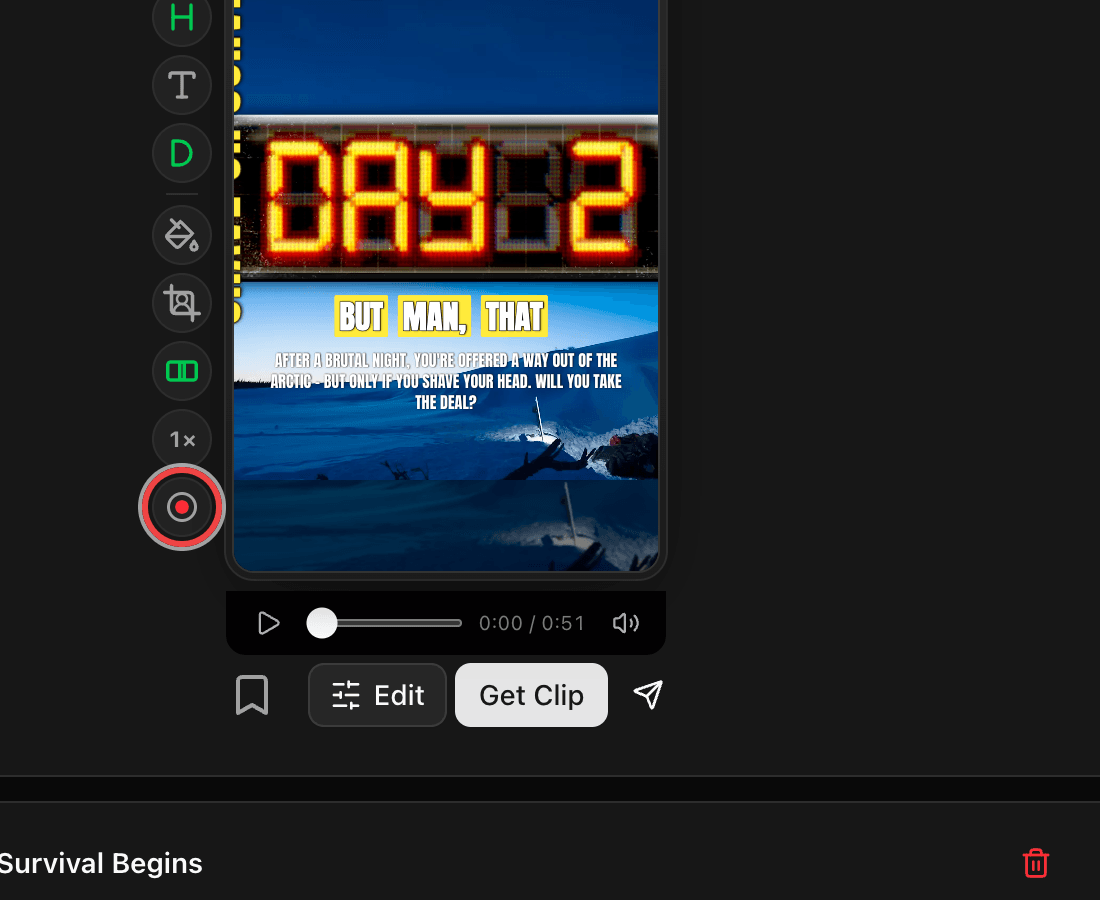
Open a clip's editing view. The record button sits at the bottom of the quick-edit rail beside the preview, a red dot in a ring.
2. Choose camera or voice
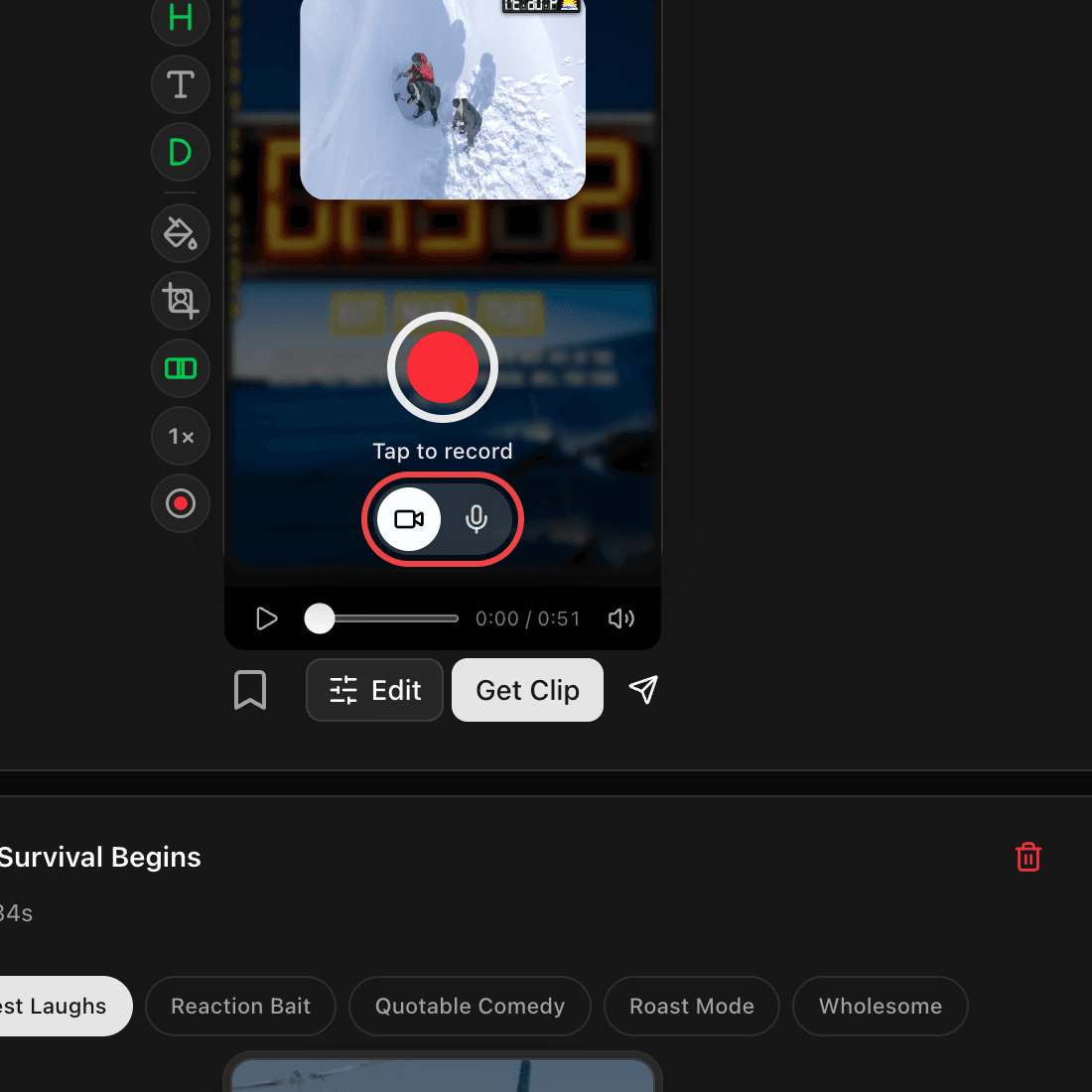
The record surface opens with your camera preview so you can see exactly what will be on the clip. Use the switch under the big button to go voice only, no camera. Cliphi remembers your choice for next time.
3. Record while the clip plays
Tap the big button. After a quick 3-2-1 countdown the clip starts playing and recording begins, so say what you think as you watch. The clip's sound stays low under your voice.
4. Review your recording
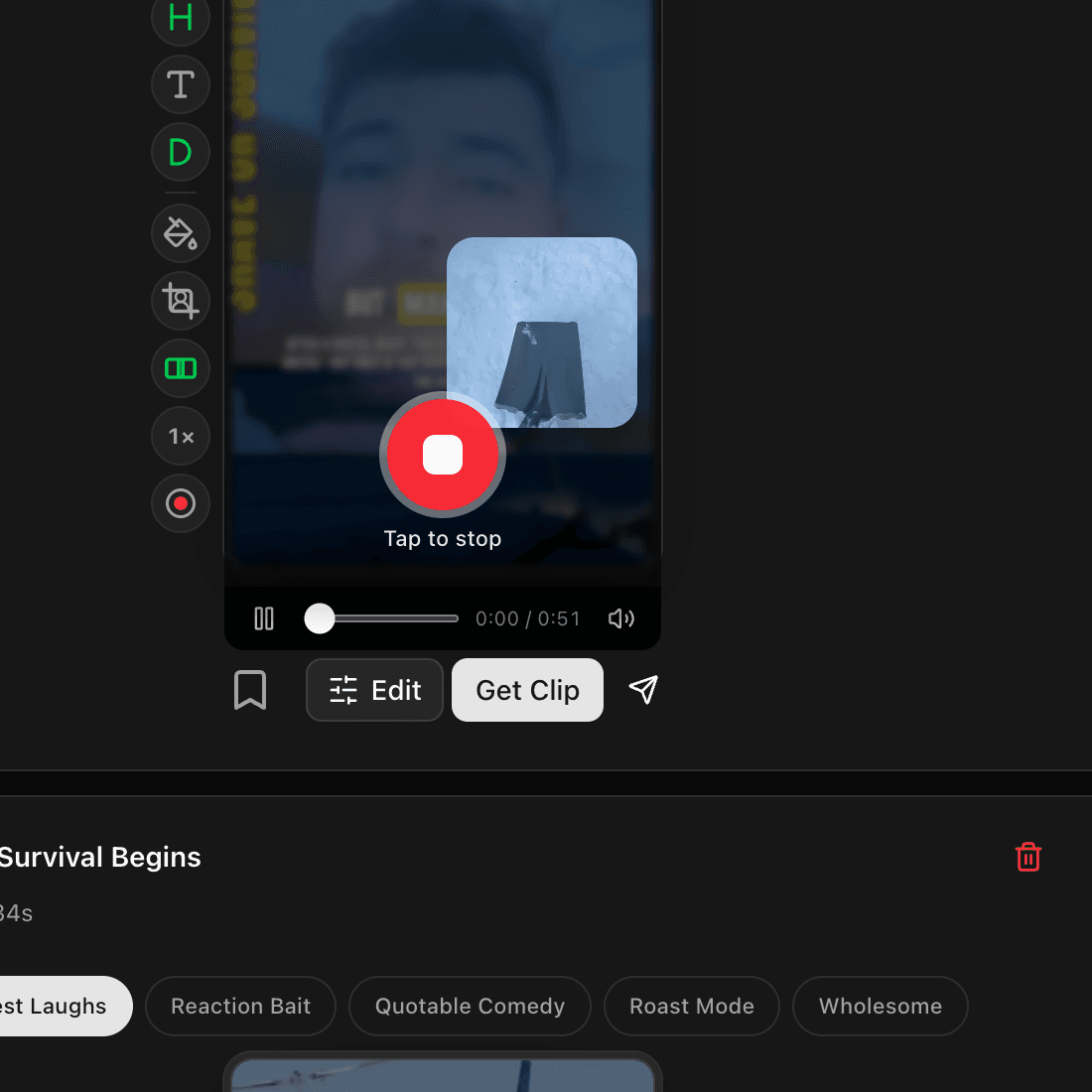
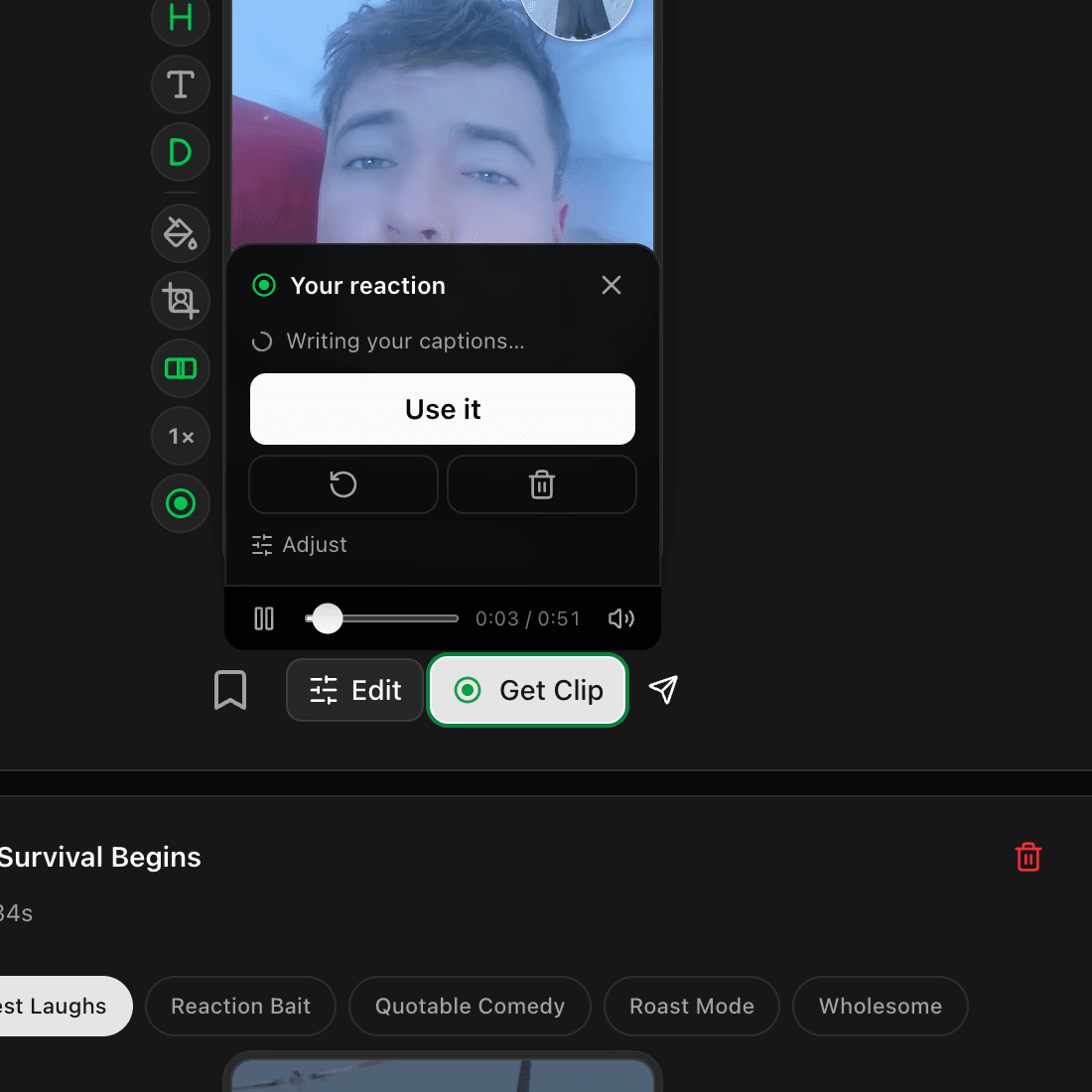
Tap the button again to stop, or let the clip run to the end. Your reaction replays over the clip right away, exactly as it will look. Keep it with Use it, redo it with the record-again arrow, or remove it with the trash button.
5. Get your clip
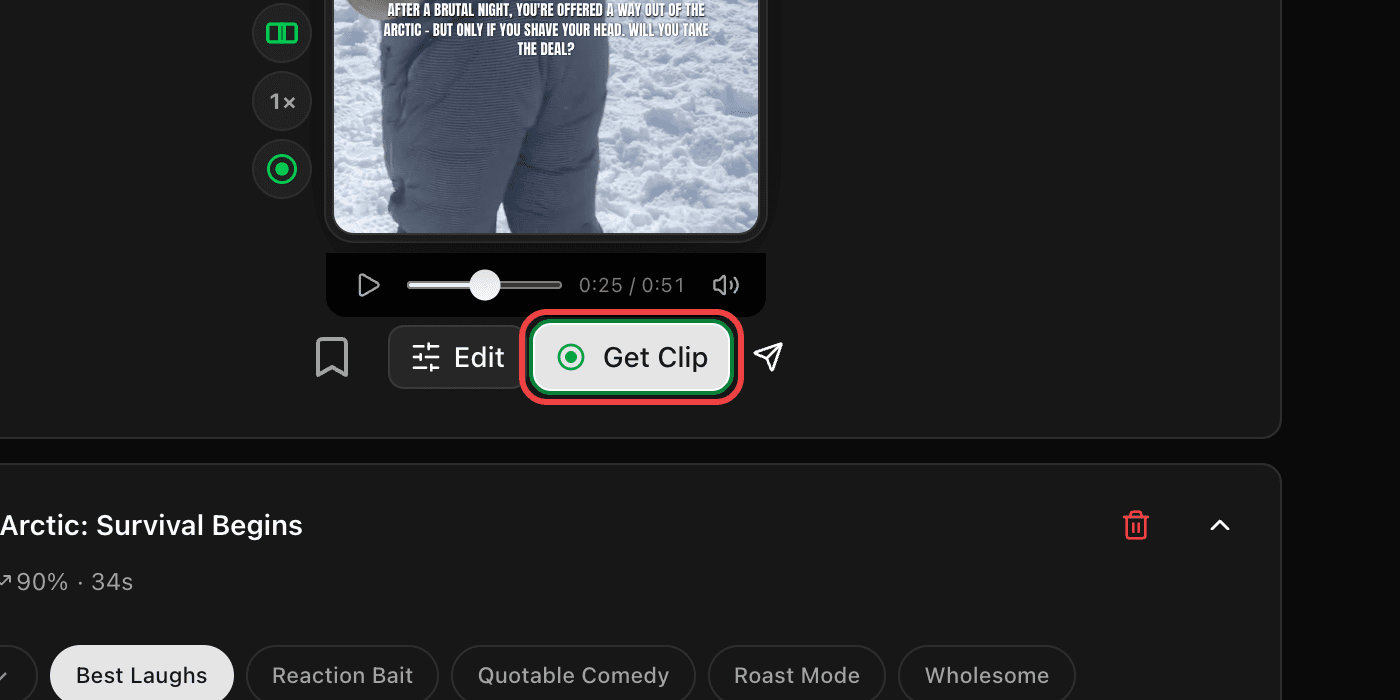
The Get Clip button shows a green ring when your reaction is included. Tap it and the final clip renders with your reaction built in.
Good to know
- Recording is free. Rendering the final clip uses credits like any other clip. See How credits work.
- A recording can be as long as the clip itself, up to about 3 minutes.
- While your reaction is on a clip, the clip's speed is locked at normal, and trimming the clip removes the reaction. You can always record again after.
- Blocked the microphone by accident? Enable it in your browser's site settings for cliphi.com, then try again. If only the camera is blocked, you can still record voice only.
- Your words show up as the clip's captions a few seconds after you record. Want the video's own words instead? See Fine-tune your reaction.
Quick check before you Get Clip
- Play the preview once. Your voice should sit clearly above the clip's sound.
- The camera bubble is not covering the captions or anything important.
- The captions show the words you want (yours or the video's).
- The right look is applied (style, background, and so on).
What's next
Last updated on