Choose which part to clip
Point Cliphi at one section of a long video instead of the whole thing, so it clips just the part you care about.
You do not have to feed Cliphi the whole video. When you start a project, you can point it at one stretch, like the second half of a podcast or a single topic in a two-hour stream. Cliphi then looks for clips only inside that stretch. It is the quickest way to skip long intros, sponsor reads, and dead air, and it gets you clips from the part you actually want faster.
When to use this
- Your video is long and the good stuff is all in one place.
- You want to skip the intro, the ad break, or the goodbyes at the end.
- You only care about one topic in a video that covers many.
- A stream ran for hours and you want clips from the last hour.
If you want clips from the whole video, you can skip all of this. Cliphi uses the whole thing by default.
Where you pick a section
After you paste a link or upload a file, Cliphi shows you the video with a footage selector below it. For a short video it stays tucked away. For a long one (over about half an hour) it opens on its own, since that is where picking a section helps most. If it is closed, tap the settings control next to the video to open it. Look for the line Select footage for your clips.
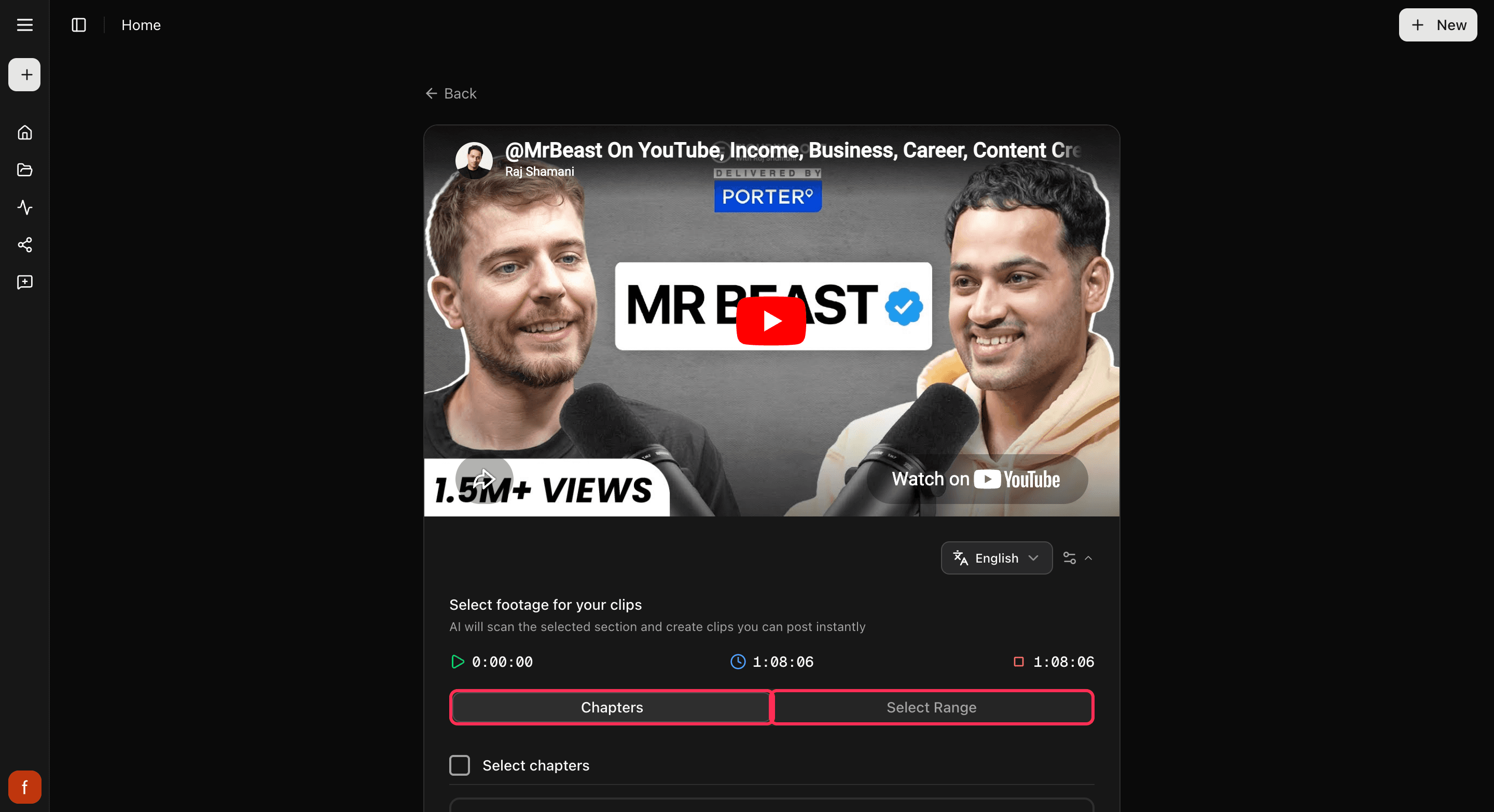
At the top you will see three times: where your section starts, how long it runs, and where it ends. They update live as you change your pick.
Two ways to pick
By chapters
If the video has chapters, you get a Chapters list. Tick the ones you want and Cliphi sets the section to cover them. Use Select chapters at the top to grab them all at once.
Chapters have to be a run that sits next to each other, not a scattered few. Start with any chapter, then add the one just before or just after it to grow the section. To make it smaller, untick from either end. This keeps your section as one clean stretch of the video.
By dragging
Switch to Select Range (or, if the video has no chapters, you get this straight away) to set the section by hand. Drag the two handles on the bar: the left one is where your section starts, the right one is where it ends. A section has to be at least a minute long.
Then keep going
Once your section looks right, select Continue and finish the usual way. Cliphi scans only the part you picked and makes clips from it. Everything after this, the look of the clips and the editing, works exactly the same.
One thing to know: picking a section changes the part Cliphi looks through for clips. It does not trim any single clip. To shave a few seconds off a finished clip, use Trim a clip instead.
Quick check before you continue
- The start time is where the good part begins.
- The end time is past the last thing you want clipped.
- You have not left an intro or ad break inside the section.
Related
- New to this? Make your first clips.
- Clipping a long stream? Clip a YouTube livestream.
- Want to trim one clip instead? Trim a clip.
- Missed a moment? Find more clips.
Last updated on