A tour of your project page
When your clips are ready they land on the project page. Here is a quick tour of what everything on it does.
When Cliphi finishes, your clips land on the project page. Everything for this video lives here. Here is a quick tour of what you are looking at.
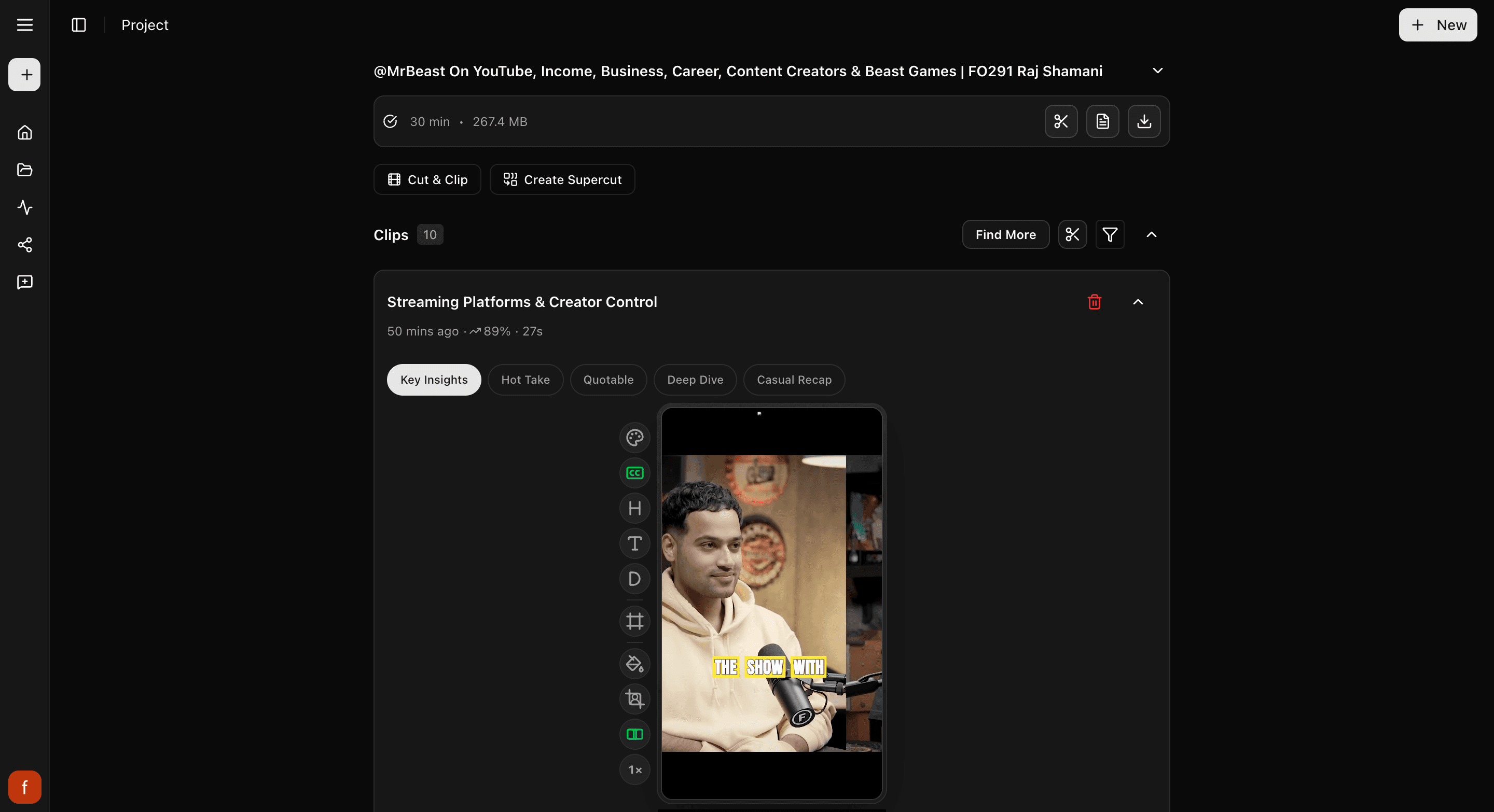
Preview now, finished clip when you want it
Every clip on this page starts as a preview. You can play it, change how it looks, and try different wording, all before you commit to anything. When one looks right, you tap Get Clip and Cliphi makes the final version you can download or post. Nothing is final until you ask for it, so feel free to poke around.
Your video
At the very top is the video you started with, folded up to keep things tidy. Tap it to open it back up. From here you can read the full transcript of what was said, or download the original video if you want the whole thing.
How to read a clip
Below your video is the list of clips Cliphi pulled out for you. Each one is a card you can play right where it sits. On every card you will see:
- The title, a short line about what the clip is.
- The score, shown as a percent next to a little up arrow. It is a quick guess at how well the clip might do, so the higher ones are usually worth posting first.
- How long it is, in seconds.
You do not have to watch all of them. If you just want your strongest ones, you can jump to the top-scoring clips with the filter, more on that below.

A few takes on each clip
Some clips have a little row of tabs, like Key Insights or Hot Take. They are the same moment worded a different way. Tap one and the title and the caption text change to match that angle, so you can pick the framing that fits how you want to post it. You will see these before you make the final clip.
The controls on each clip
Down the side of each clip is a row of quick controls: the captions, the hook, the title, the description, the framing, the background, how lively it feels, and the speed. You do not have to touch any of them, but each one is there when you want it. For what every control does, see The quick edit rail.
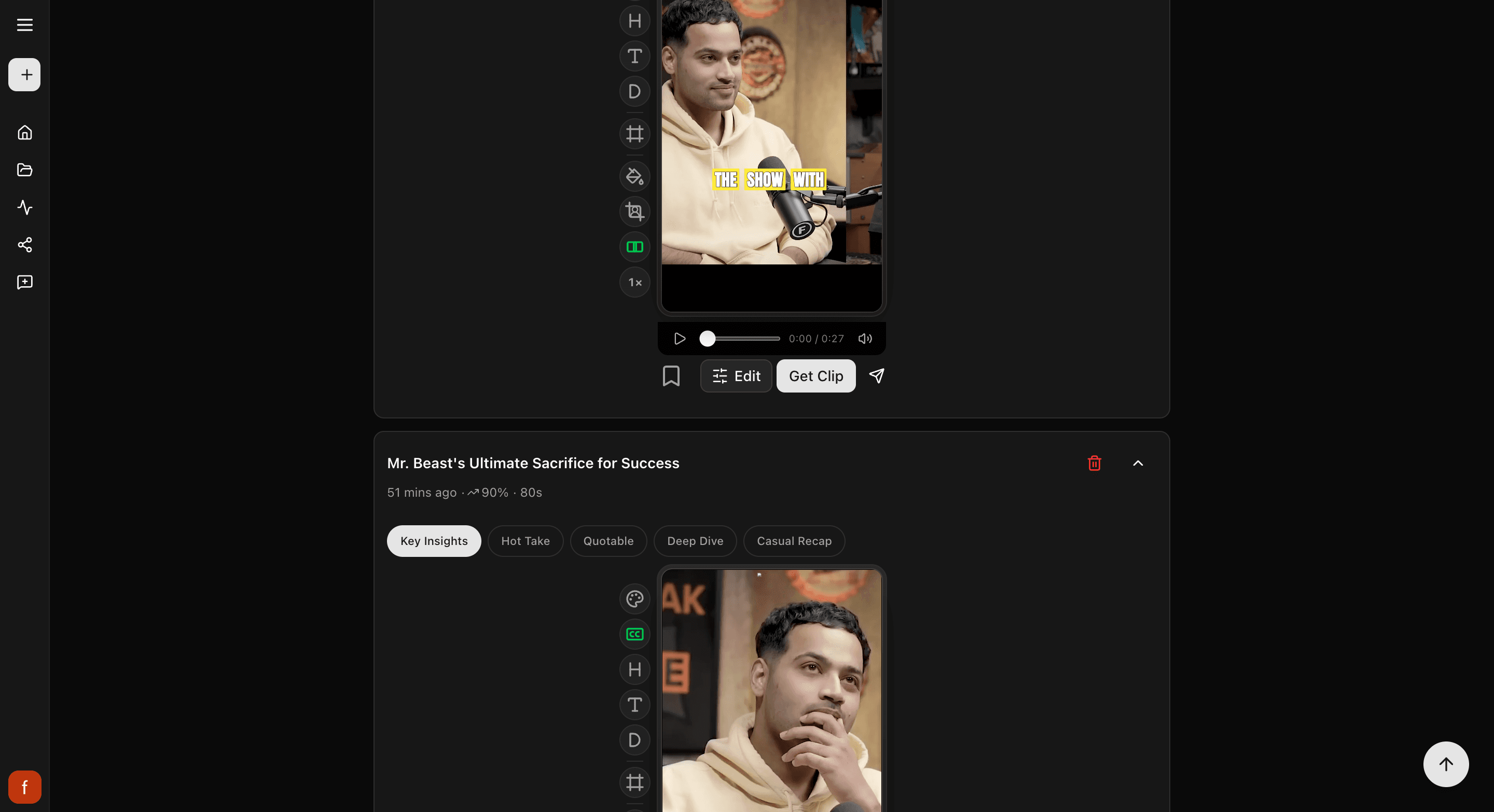
Getting a clip out
Each clip has a few buttons of its own. Here is the usual path from preview to posted:
- Bookmark marks a clip you like so you can find it again. Tap it once to bookmark, again to mark it as posted, and again to clear it.
- Edit opens the clip's controls so you can tweak the look. You can skip this if the clip already looks good.
- Get Clip makes the final version. Once it is done, a Download button appears so you can save the file.
- Share posts the clip to the socials you have connected, or lines it up for later.
You can post straight from here, or download and post yourself. Either way works.

Finding your way around a lot of clips
A long video can give you a lot of clips. To zero in on the ones you want, tap the filter button near the top of the list. You can narrow down to your top-scoring clips, the ones you have bookmarked, clips of a certain length, and more. Tap the filter again to clear it and see everything.
Want even more clips?
Near the top you will find three ways to make more:
- Find More goes back through the same video for a different kind of clip. Use it when you have something specific in mind: tell it "funny moments" or "the best advice," and it looks again. You can also tell it to skip clips you already have.
- Cut & Clip is for when you already know the exact bit you want. Pick the spot in the video and it makes a clip from there.
- Create Supercut stitches the video's best moments together by theme into one short highlight clip. It shows up once your video is long enough to have a few moments worth stringing together.
What's next
- Want to tweak how a clip looks? See The quick edit rail.
- What the score means: How the score works.
- Grab an exact moment: Cut a clip from any moment.
- Make a highlight reel: Create a Supercut.
- New here? Make your first clips.
Last updated on
Make your first clips
Paste a video link and Cliphi turns it into short, captioned clips ready to post for TikTok, Reels, and Shorts. Here is how to make your first ones.
What you can clip
The kinds of video Cliphi can turn into clips, the links and files it accepts, how long they can be, and what makes a good one.