Upload your own video file
No link? Upload a video straight from your computer and Cliphi turns it into short, captioned clips. Here is what works.
You do not need a link. If your video is a file on your computer, you can upload it and Cliphi makes clips from it just the same. This is the way to go for footage you filmed yourself, or any video you have the rights to that is not a public link.
Steps
1. Choose Upload
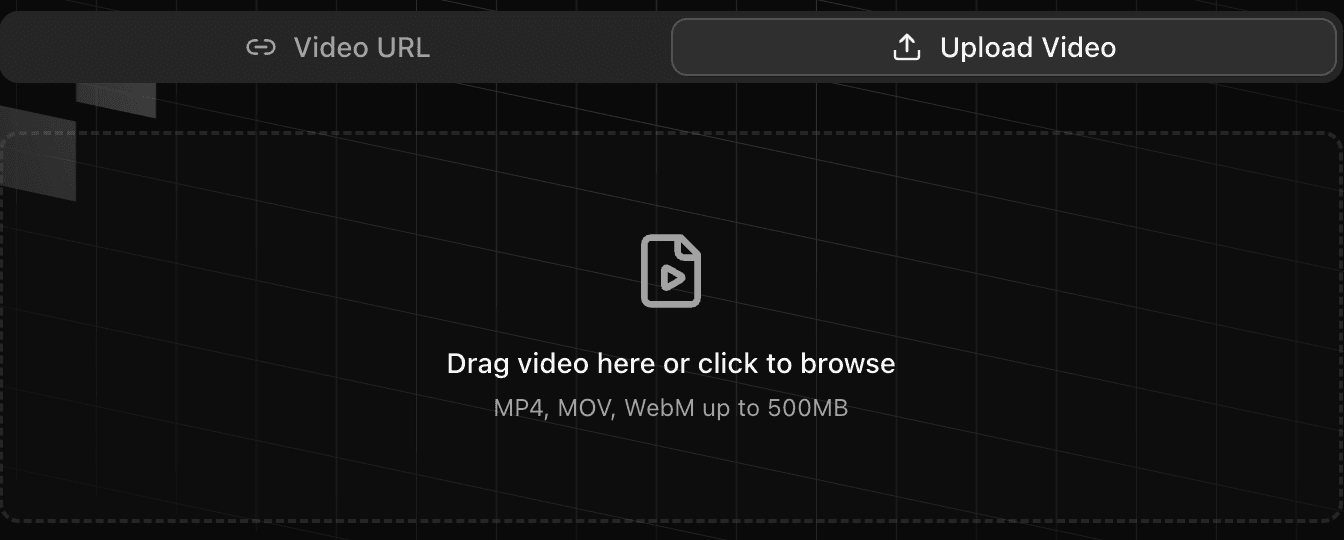
On the Cliphi home page, switch to Upload Video, then drag your file onto the box or click to browse and pick it.
2. Check your file will work
Most common video files work, like MP4 and MOV, up to 500 MB. A few things to know:
- There is no time limit on an uploaded file, only the 500 MB size. A very long or very sharp video might need trimming first.
- Older Windows video files (.wmv) are not supported. Save or export as MP4 first.
- Filmed in 4K? No need to shrink it yourself. Cliphi handles that for you.
3. Choose how much to use
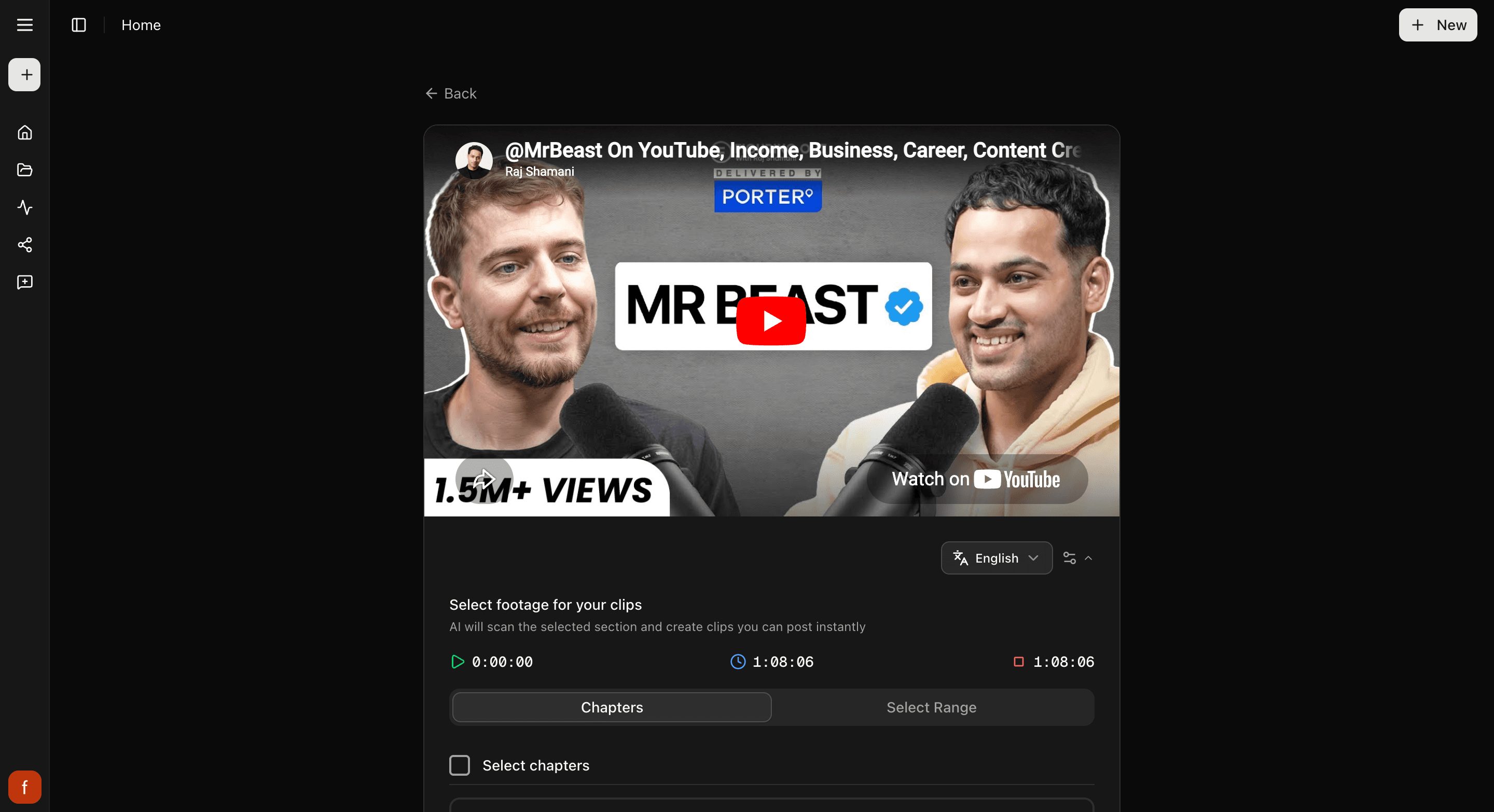
Once it uploads, Cliphi shows you the video. Use the whole thing, or drag the handles to pick just one part. Then select Continue.
4. Look through your clips
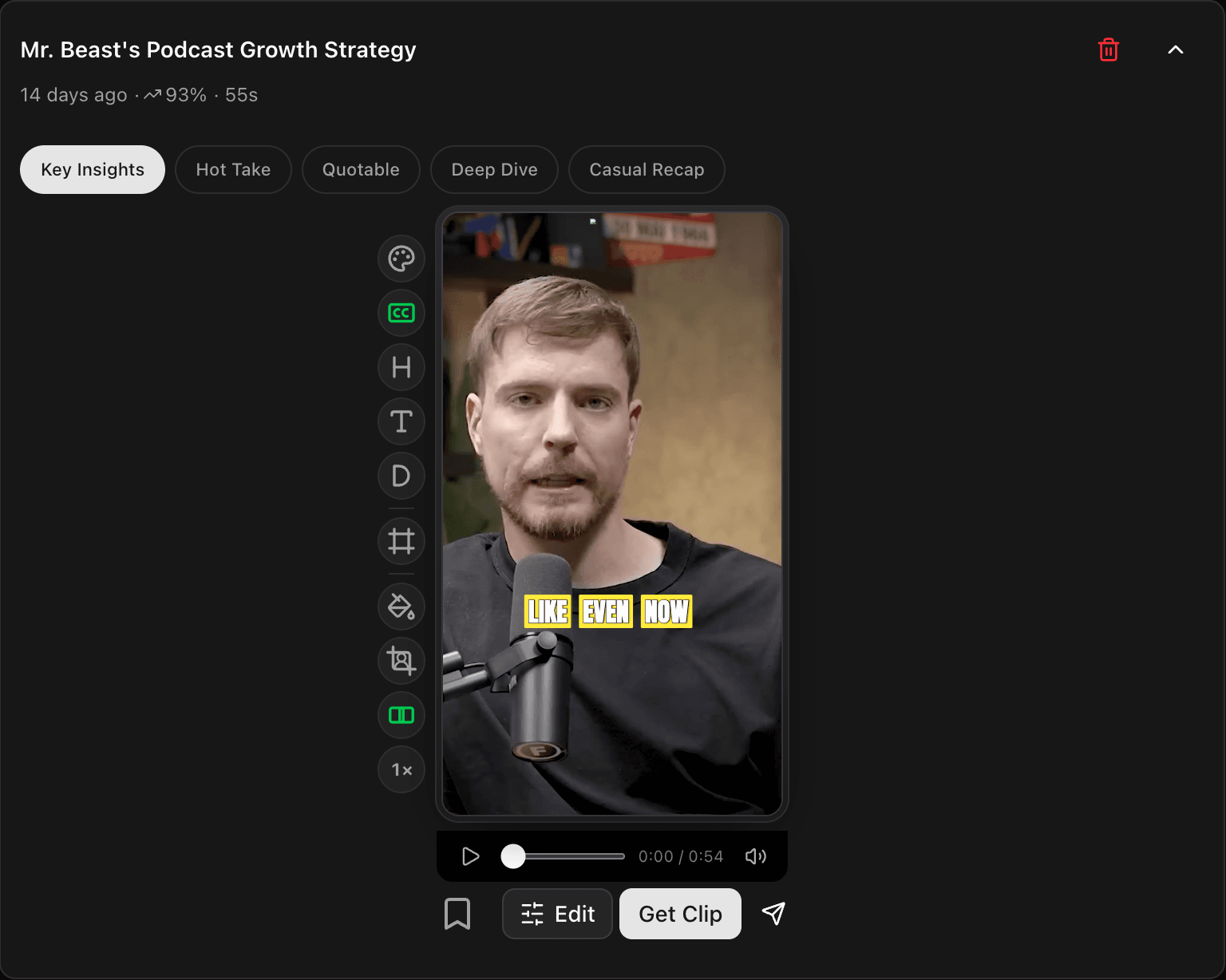
Cliphi makes your clips and they show up one at a time, each cut tall with the speaker in frame and captions already on it.
5. Tweak and post
Open a clip to change the look with the controls down the side, then tap Get Clip to make the final version and download it, or Share to post it.
Using the right video
Upload videos you made or have permission to use. Reposting someone else's video without their say-so can break the rules on TikTok, YouTube, and the rest.
Quick check before you post
- Watch the whole clip through.
- The speaker stays in frame the whole way.
- The captions read clearly and sit clear of the edges.
Related
- What else you can clip: What you can clip.
- New to Cliphi? Make your first clips.
- What each control does: The quick edit rail.
Last updated on
Turn a podcast into clips
A podcast episode is full of clip-worthy moments. Paste its YouTube link and Cliphi pulls out the best bits with captions, ready to post.
Choose which part to clip
Point Cliphi at one section of a long video instead of the whole thing, so it clips just the part you care about.