Make your first clips
Paste a video link and Cliphi turns it into short, captioned clips ready to post for TikTok, Reels, and Shorts. Here is how to make your first ones.
A clip is a short piece cut from a longer video, ready to post. Cliphi makes them for you: you give it a video, and it hands back short clips with captions already on them. Here is how to make your first ones.
Steps
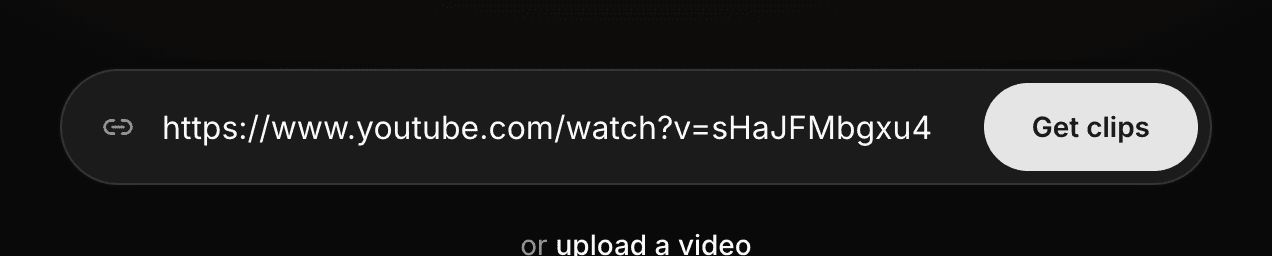
1. Paste your video link
On the Cliphi home page, paste a link to your video into the box and select Get clips. It can be a YouTube video, a livestream, a podcast, and more. You can also upload a video from your computer.
If you are not signed in yet, Cliphi asks you to sign in first, then picks up right where you left off.
2. Choose how much to use
Cliphi shows you the video. You can use the whole thing, or pick just one part. Pick a chapter, or drag the handles to choose a section. If you are not sure, leave it on the whole video. Then select Continue.
A long video is fine here. A two-hour podcast or a full stream works. You do not have to watch it or cut it down yourself. Pick the whole thing or just one part, and Cliphi takes it from there.
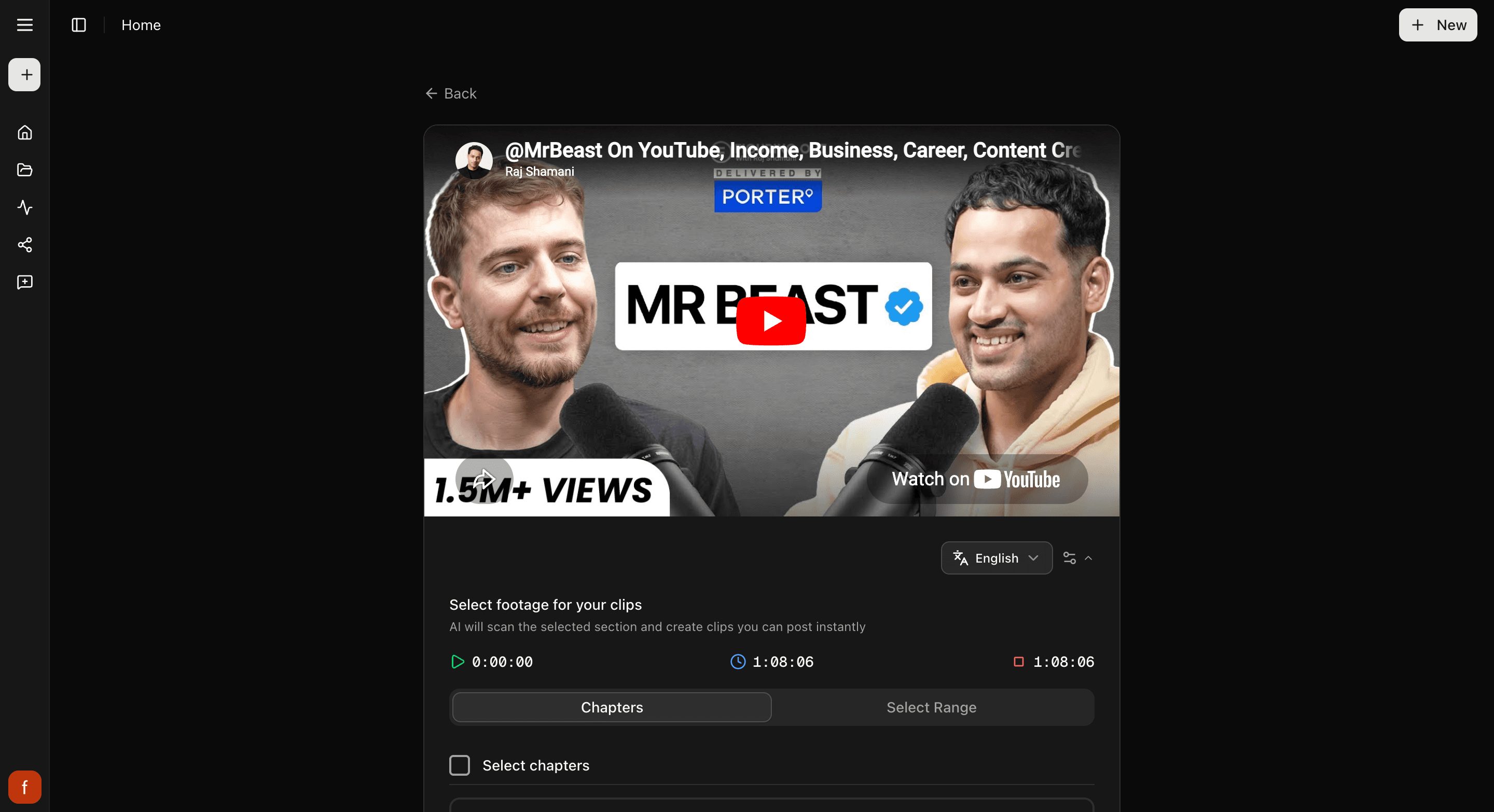
Clipping a live stream? Instead of chapters, you choose how long to record and press Start Recording. Clips can come back while it is still going.
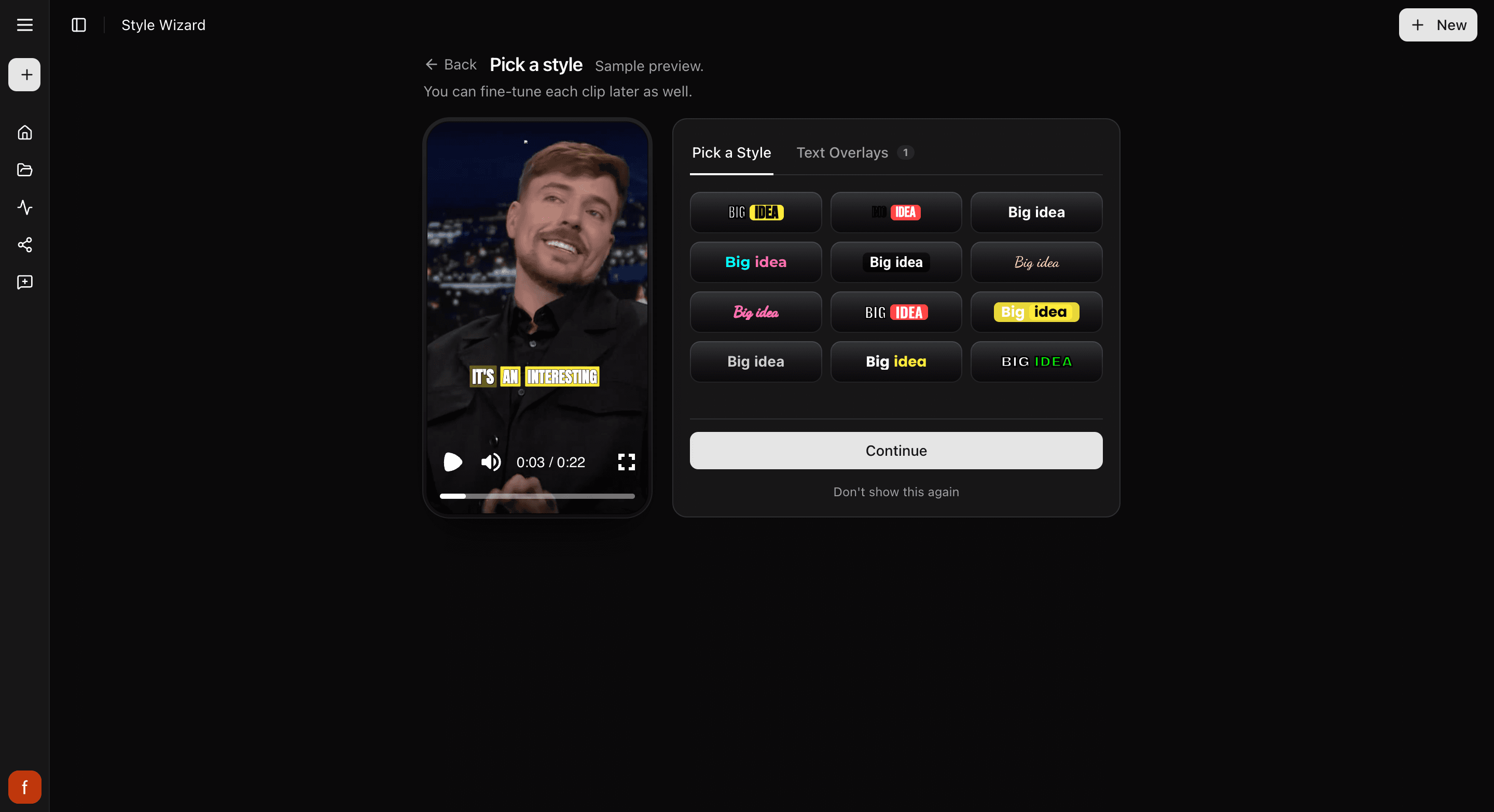
3. Pick a caption look
Cliphi may ask you to pick a caption look for your clips. Choose one you like and select Continue. If you do not see this step, no problem, Cliphi picks a clean look for you. Either way you can change it on any clip later, so nothing here is final.
4. Let Cliphi make your clips
Now Cliphi gets to work. You will see it move through a few steps, like loading your video, watching it, and finding the best clips. Your clips then start showing up one at a time as they are ready, so you do not have to wait for the whole batch.
This usually takes a few minutes. A longer video takes longer. You are free to leave the page and come back whenever. Your clips will be here waiting.
5. Look through your clips
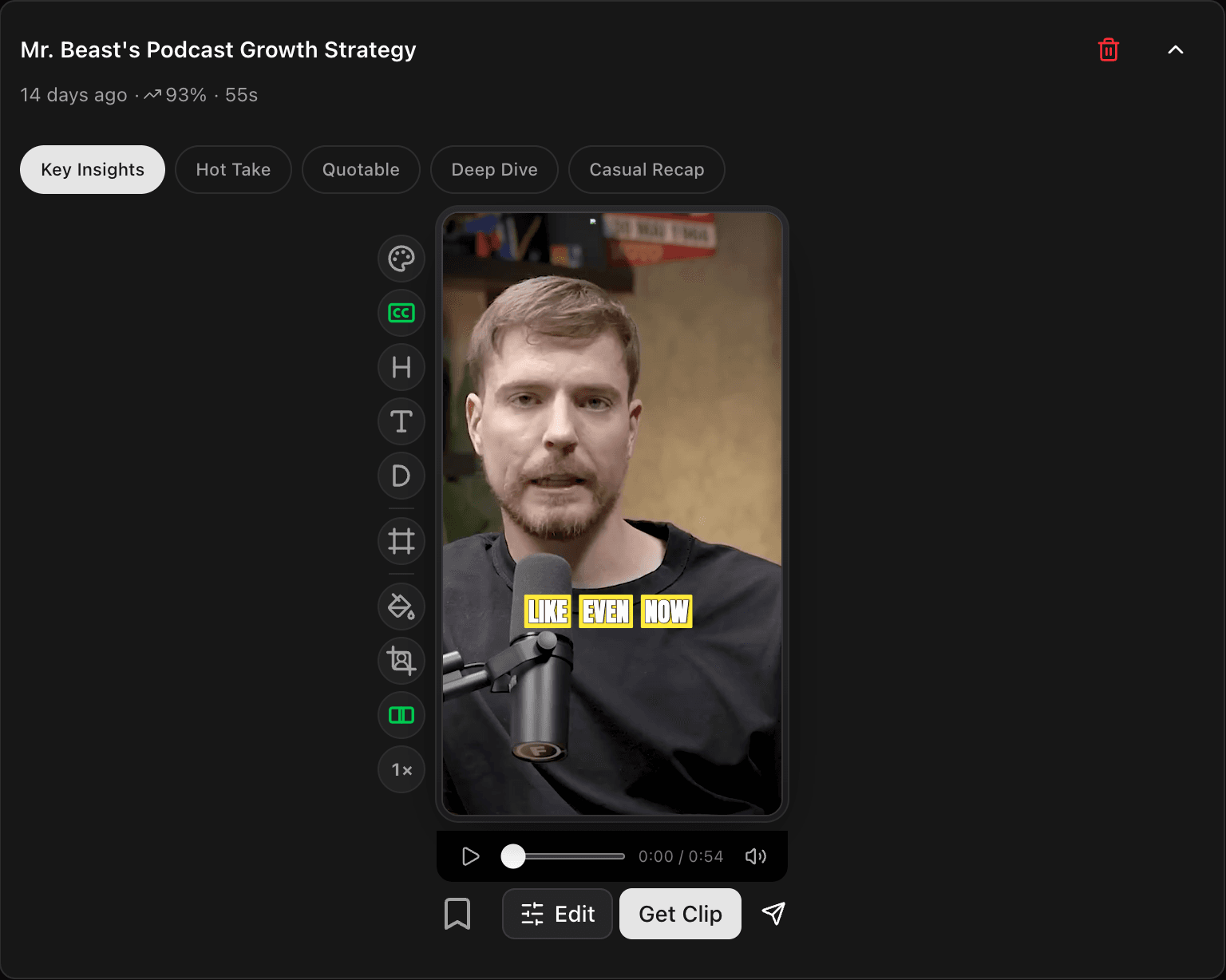
Each clip comes back ready to post. It is cut to a tall shape that fits TikTok, Reels, and Shorts, with captions already on it.
Play a clip right where it sits to see how it feels. Next to each one is a small number with an arrow, like 87 percent. It is a quick read on how well that clip might do, so the higher ones are usually worth posting first. Trust your own eye too. Watch a couple before you choose.
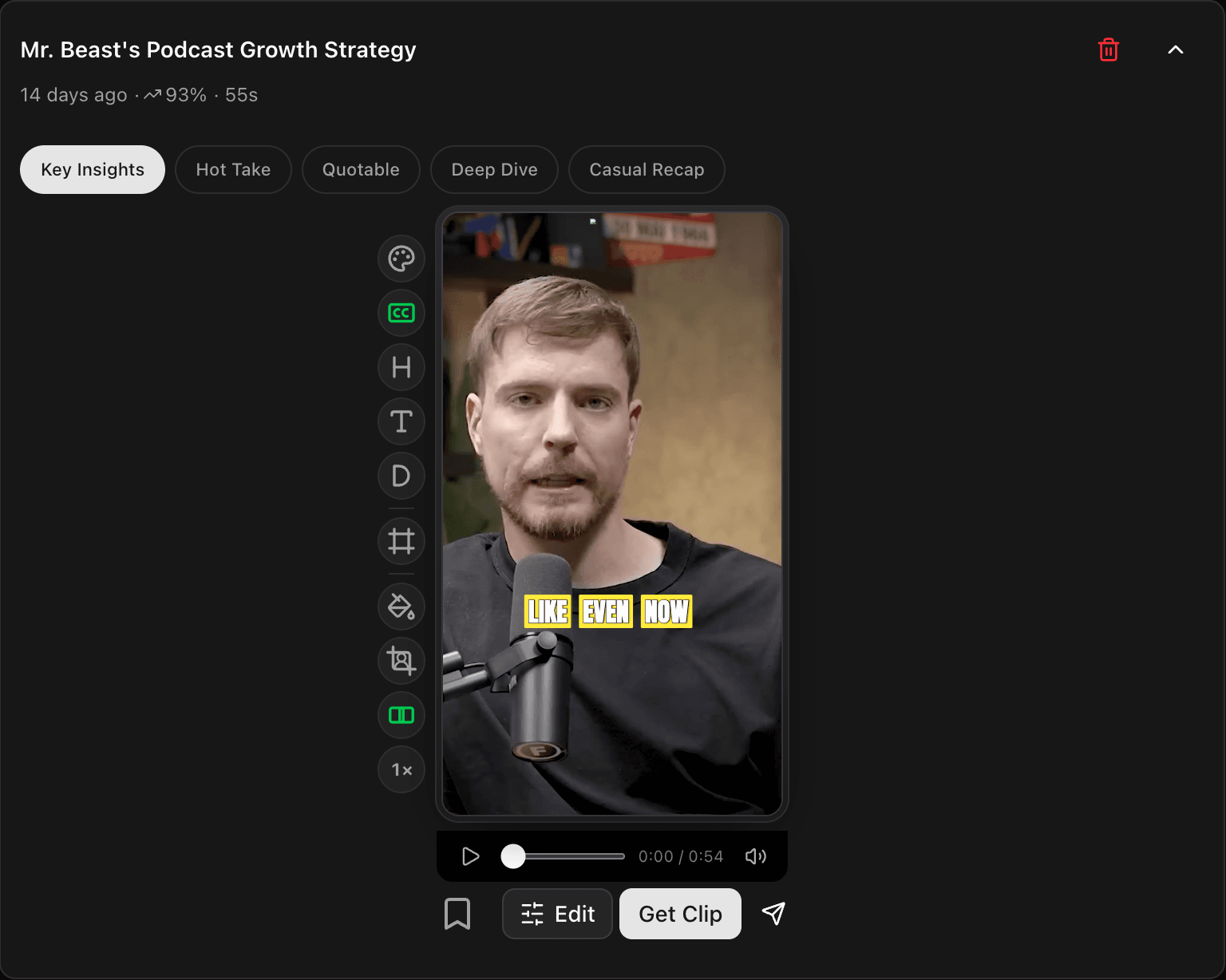
Some clips have a row of tabs across the top, like Key Insights or Hot Take. They are the same moment written a different way. Tap through and keep the wording you like.
6. Change anything you want (optional)
Happy with a clip as it is? You can skip straight ahead. If you would like to tweak one, open it and use the controls down the side. Every change shows in the preview as you make it.
Two things people reach for first:
- Framing looks off? If the person is not centered, tap Crop to switch the shape, or open the controls to nudge them left, right, up, or down.
- Want a different look? Tap Pick a style to restyle the whole clip at once, or tap Caption to change just the captions.
7. Get your clip
When a clip looks right, select Get Clip. Cliphi makes the final version and a download button appears so you can save it. It keeps the clip too, so you can always find it again.
Want to post without leaving Cliphi? Tap Share to send it to your connected accounts, or to line it up for later. No accounts connected yet? Cliphi walks you through it.

That's it. You have made your first clips and got one ready to post.
Quick check before you Get Clip
Before you select Get Clip, give the clip a quick once-over in the preview:
- Watch the whole clip through.
- The person stays in frame the whole way.
- The captions read clearly and sit clear of the edges.
- Turn off anything you do not need, like the description.
Didn't get what you hoped?
Near the top of your clips, Find More pulls more from the same video, and you can tell it what you are after.
What's next
- Want the captions to look different? See Change your caption style.
- Get to know your clips: A tour of your project page.
- What every side control does: The quick edit rail.
- Which links and files work: What you can clip.
- Saving the finished file: Download a clip.
- What you spend to make clips: How credits work.
Last updated on